Selecting
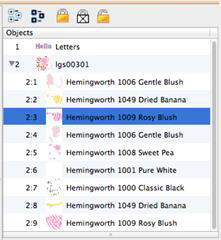 Using the Objects view you can select any number of Designs or
Objects, regardless of whether or not they are locked, hidden or grouped. This
allows for editing of objects or designs without ungrouping. For example, the
following design is all grouped so that it can be moved around the page as a
single design. However, you may want to select just the second color to change
it, re-sequence it or even delete it.
Using the Objects view you can select any number of Designs or
Objects, regardless of whether or not they are locked, hidden or grouped. This
allows for editing of objects or designs without ungrouping. For example, the
following design is all grouped so that it can be moved around the page as a
single design. However, you may want to select just the second color to change
it, re-sequence it or even delete it.
The toolbar on the Objects view also has selection options including ‘Select All’ which is the first button on the left. If the Main view is active you can also type Ctrl-A to select all or you can use the Edit menu for this option too.

Reverse Selection
 The second button will reverse
(invert) the current selection. This means that whatever you have selected will
no longer be selected, but everything else will become selected. This is useful
when you want to delete everything except for a single design element.
The second button will reverse
(invert) the current selection. This means that whatever you have selected will
no longer be selected, but everything else will become selected. This is useful
when you want to delete everything except for a single design element.
Range Selection
Using the Objects view you can select multiple designs or objects. If a single object is selected, you can use the shift key while clicking a second object and this will select a range of objects: Everything in between the two will be selected.
Disjointed Selection
If you use the Command key while clicking on objects, you can singly select designs or objects. To de-select an object that’s already selected, Cmd-click on it. This will reverse its selected state.
Selecting by Color
If you want to select all objects of a given color, select one of the objects as described above. Then use menu option, Edit->Select by Color. This will find and select all the objects on the page, which have those same colors in them. This is a handy feature to change the color of several things at once.