Stitch Simulator
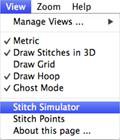
 The Stitch Simulator lets you see how
the design will sew out by sewing on the screen. It is activated by clicking the
Stitch Simulator tool in the View tool bar or selecting Stitch Simulator from
the View menu.
The Stitch Simulator lets you see how
the design will sew out by sewing on the screen. It is activated by clicking the
Stitch Simulator tool in the View tool bar or selecting Stitch Simulator from
the View menu.

Stitch Simulator controls
Stitch Simulator Controls
The controls are easy to use and give complete control of the simulated sewing process.
Player Control: This control lets you sew forward, backward and stop. The right arrow starts sewing forward. The double bars stop sewing. The left arrow starts sewing backward.

Step Stitch Control: This control lets you sew one stitch at a time forward or backward. Right arrow: forward. Left arrow: backward.

Speed Control: Use the slider to change the speed of sewing. Move to the left for slower to the right for faster.

Manual Control: Click and drag this slider forward or backward to quickly move a particular section of the design.

Stop Control: Click the Stop button to insert a color stop in the design. This allows you to change colors on the fly. Or creatively use this to isolate parts of the design that you want to remove or isolate.
