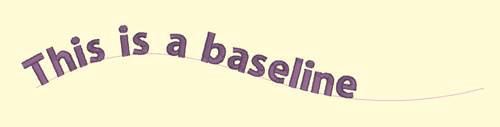
Baselines provide a means for lettering to follow on a path, whether open line or closed shape.
Lettering with baselines have the options: -m (middle), -t (top), -b (bottom), -c (center).
Note: The lettering design gets named with the option, not the baseline. Baseline names would be simply “baseline” followed by a number, ex: “baseline 1”.
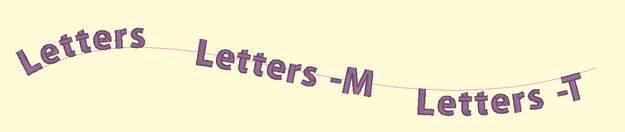
There is an additional option for closed shape baselines: -l (lower) or –u (upper).
Baselines have pre-determined default settings which can be overridden by the lettering options. An open baseline will initially place the lettering at the left start of the shape. Closed shape baselines will place the lettering at the top, centered.
The control handles for lettering work slightly different on a baseline. The center handle, used to select a letter, also will allow the letter to be placed anywhere both vertically and horizontally on the baseline.
The lower pennant handle causes the lettering to move along the baseline, and to have all the letters to the right of it follow. The pennant handle above the center causes the letter to move above or below the baseline and all the letters following will do the same.
The rotation handle connected to the center handle causes the letter to rotate and all the following letters rotate in place to match.

The middle and top options describe how the lettering will be placed vertically along the baseline. Top indicates that the top of the lettering design will be placed along the baseline. Middle places the lettering design centered vertically on the baseline. Bottom is the default, so no option is required unless using the –l (lower) option.
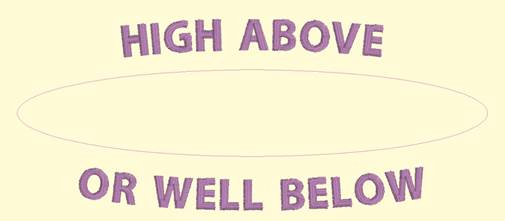
When using a closed shape, such as a circle, it is often desired to place lettering both above the top and below the bottom of the circle. This can be accomplished with two lettering designs, one for the top, and one for the bottom. This allows each line of text to have its own settings, even a separate font. When specifying that the lettering will go to the bottom of the shape, and the –l (lower) parameter. The template will switch the default placement to –t for lower shape lettering. You can change this using –m or –b.
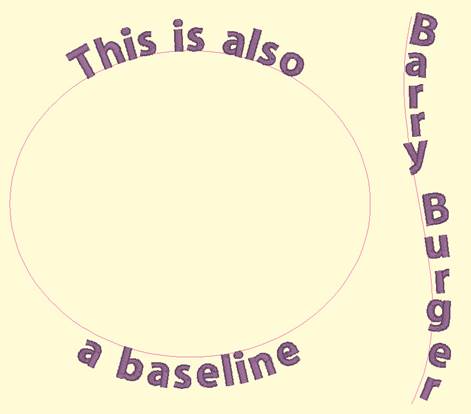
You can achieve any letter placement with a baseline. Even ‘wavy’ vertical text can be accomplished using a vertical line and rotating the letters using the center rotation handle.
If you have StitchArtist, information about drawing baselines can be found in the ‘Drawing Lettering Templates’ section of this manual.