Product: StitchArtist™
StitchArtist is a program designed to allow embroiderers to create stitch designs from scratch using existing artwork or by ‘drawing with stitches.’ It has been described as an object-based digitizer. You draw and control the shapes, set the stitch type and properties, and StitchArtist generates stitches for you. When you want to create stitches, that’s what it does.
StitchArtist comes in levels which suit different skill level embroiderers.
Note: Each topic in this manual may have notes for different levels. This allows for continuity in the learning process. As you progress, you can purchase additional levels whenever you are ready.
Level 1 is designed for a hobby embroiderer who needs to be able to create stitches without going into debt or spending much computer time. Level 1 offers a limited set of stitch types and, more importantly, properties for those stitches, so that the user can simply ‘create.’ Typical projects for Level 1 are applique designs, running stitch designs and simple filled shapes, backgrounds or unifying elements for design compositions etc. It is not designed for logo work or publishing, unless you’re working with applique.
Level 2 includes Level 1 and is designed for basic skills training for those who would like to create more sophisticated designs, as well as a basic set of tools for logo creation. It will allow the user to learn a wide cross-section of stitch types and properties, and have enough freedom to create virtually anything.
Level 3 includes Level 1 and Level 2 and is designed for someone who either loves to create designs or works commercially in the embroidery field. This level includes advanced items such as QuickStyles, adding user-created motifs and designs, graphical operators such as Reconstruct, Outline Stitches, Inflate, Cut, AND, Union and Break, extended Vector support and more.
Illustrations in this manual are shown with Level 3 enabled unless otherwise noted. Feature differences in other levels will be discussed in the text.
StitchArtist is not an attempt at fully automatic design creation. It will not attempt to ‘convert an image’ into embroidery; It does not contain photo-to-stitch for example. These are all reasonable tasks, but are not the same as what StitchArtist is.
It is also not a ‘customizing’ or ‘editing’ program for the manipulation of existing embroidery designs. You may load designs so that you can add stitches to them, but they are not alterable in most ways.
Embroidery designs have been created with computer programs since the late 1970’s. The hardware used by artists at the time came from the CAD/CAM industry (Computer Aided Design/Manufacturing) and consisted of a CAD “digitizing” board (like an architect desk) and a mouse-like ‘puck.’ As no one thought to change the CAD term, the word “digitizing” has been with us in the embroidery craft ever since. We prefer the term “Design Creation” though for two reasons: 1: Because it really is more accurate. And 2: Because the term “digitizing” carries negative connotations of difficult-to-learn software. Therefore “Digitizing” and “Design Creation” are interchangeable in this manual; however our product is a change in the user interface, and is easier to use. Just wait, you’ll see.
Design creation is a two-fold learning process. First, there is the software. That is the set of buttons and sliders that make things that can be stitched. That’s pretty easy to learn, especially for anyone who understands drawing programs or even has general computer skills. Whereas digitizing software in the past had been developed in its own little world, and the graphics programs went their own ways, the two are now converging with similar tools and operations in both. Do not be misled into thinking that embroidery and graphics are at all similar though, as designers can get away with all kinds of things in graphics that are simply not possible in embroidery. The level of sophistication in an embroidery creation program is much higher than a graphics program, generally speaking.
That brings us to the second and more difficult part of the learning curve – the knowledge of embroidery itself. Embroidery involves thread and fabric. Both are by definition flexible, usually stretchy to some extent and operate differently in different combinations. In graphics you can do things however you want: In any order, at any place, or jump from point to point without regard. And the result will always look the same. With embroidery all those assumptions are false. You need to understand which stitches will go down first, and why they go there, and you need to really think about where the machine is going to go as it stitches the design. Generally there are three areas of thought that need to be part of your process when you create a design:
The material, thread and project combination. This dictates certain items such as the amount of coverage you need, the maximum number of stitches within an area that can be added to the fabric before it puckers, and how it will be stabilized so as to mitigate somewhat the inherent limits of the fabric.
The path the machine will take as it creates the design. You don’t want to leave thread trails all over, and you don’t want to have to cut those either. Even if the machine does that for you, you still have to spend the time on that process. And if a design always sews in a given direction, you wind up pushing the fabric around so much that the later stitches won’t align or ‘register’ with the earlier ones.
The types of stitches used. This is the topic that is easily understood, but can take a lifetime to master. The basic stitches are pretty obvious, but the quality of the output comes from clever usage and combinations of elements.
This manual covers the usage of the program itself, and attempts to interject some knowledge of the embroidery process as well. However, we very much recommend the reader take educational programs on design creation from others. There are a number of wonderful educators for digitizing in the marketplace, and their fees are generally well worth the knowledge you will gain. With respect to those instructors, please humbly accept that any differences you find herein with regards to your teachings, are not intended to be the ‘only way’ someone ought to do something, nor necessarily the ‘best’ approach, but perhaps is what we ourselves are comfortable teaching. We all have our own styles, and those differ from time to time.
If you have never embroidered before, take some time to learn the use of your machine and the basics of embroidery. Your local sewing machine store will have classes that you can attend to help you get going. We must assume for the purposes of this manual that you understand the ordinary hobby aspects of embroidery – what a hoop is, what stabilizer is, what a ‘design’ is etc. Hopefully you have at least stitched something successfully.
You do not have to be an artist. Really -- let’s say it again --you do not have to be an artist.
The reason is that embroidery creation is more of a ‘color-by-numbers’ process. You may be an artist, and that’s great. You can even create your art within the program. However the process of laying stitches on top of your art or image is a mechanical, methodical and logical process, provided that the art is suitable for embroidery. And there too is a reason why we ask that you have at least done embroidery – it will provide you some insight as to what’s possible with embroidery, and what simply isn’t. Naturally an artist can alter a complex image to be more suitable for embroidery, and a person with some experience creating designs may be able to do that intuitively as they work. It all comes from the learning process and involves much trial and error along the way. You won’t learn to paint overnight, nor learn to play Chopin the first time you sit at a piano, so please don’t expect to be creating complex designs well the first time either. But with a bit of persistence, creating designs is a much faster and easier learning curve than those other endeavors. And you can begin with simple things and start sewing in practically no time.
Reminder about Levels: Illustrations in this manual are shown with Level 3 enabled unless otherwise noted. Feature differences in other levels will be discussed in the text. Some sections have information pertaining to multiple levels. We have indicated the minimum level for which the text is relevant. Where practical, we have added higher-level information toward the ends of sections.
 The interface in
StitchArtist is different in some respects than programs that have come before,
especially digitizing software. We’ll define all these terms as we go, but if
you’re familiar with them already there are some things you should know now…
The interface in
StitchArtist is different in some respects than programs that have come before,
especially digitizing software. We’ll define all these terms as we go, but if
you’re familiar with them already there are some things you should know now…
When creating embroidery, you will be normally doing several types of tasks:
1. Loading artwork as the basis for the design
2. Creating stitch-generating “objects.”
3. Editing the “shapes” or “outlines” of those objects.
4. Editing the “properties” for those objects.
5. Moving objects around on the design page.
6. Sequencing objects for sewing order.
7. Adjusting the “entry and exit points” for sewing objects.
8. Colorizing objects.
In StitchArtist these different types of operations do not require any program ‘modes’. Generally speaking there are only two modes that you’ll run into during design creation: The normal ‘Selection’ mode when the program starts, and the ‘Creation’ mode that you’ll use while creating the designs.
You will not need a separate tool to reshape the outline of designs, nor need to switch modes to size or move objects. All the tools for design creation are accessed from either the ‘Create’ menu or the ‘Create’ Tool Pane, which is shown using the ‘Create’ button on the main toolbar.
All selected objects have their properties adjustable at all times, and the properties can be set on any number of selected objects simultaneously, causing immediate generation of the selected objects.
There are also virtually no “Apply” buttons or ‘Enter’-key requirements – stitch generation is automatic and immediate.
There are a number of features in the platform that are consistent across the products including the Navigation HUD (a compass rose in the top, right corner of the Main Window), the Zoom Slider, the Edit Menu, Zoom keys, etc. Please review these areas in the program help so that you’ll know the basic navigation of the program.
Objects are usually shapes that have stitch types and properties associated with them. The object may for instance be a Run, or a Satin Column or perhaps a Fill.
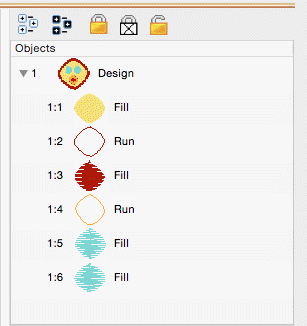 Objects can contain lots
of information: Outlines, holes, inclinations, breaks, images, stitches and
colors. Thus a single object could contain an applique – the shape of the
applique, a picture you want to print cropped in the outline, the stitches that
are generated to sew the applique and the colors for the position, material and
topstitch sewing, and even more. We’ll discuss all that separately, so please
keep reading.
Objects can contain lots
of information: Outlines, holes, inclinations, breaks, images, stitches and
colors. Thus a single object could contain an applique – the shape of the
applique, a picture you want to print cropped in the outline, the stitches that
are generated to sew the applique and the colors for the position, material and
topstitch sewing, and even more. We’ll discuss all that separately, so please
keep reading.
Designs are groups of objects that are collected together. This might be an individual design that you want to sell, or a smaller piece that you’ll reuse as an element in other designs. Designs let the user work within a section of an overall composition without being encumbered by the whole. This is similar, but not equivalent to, a term used in some graphics programs as a “layer.”
When observing the relationships between designs and objects, see that the Object View, normally docked on the right of the program screen, has at its ‘root’ level the designs, and when you expand a design, you’ll see the individual objects that compose that design. If you select a design, by clicking on it in the Object View, you will be selecting all the objects contained in that design as well. If you select all the objects in a design, selection of the design itself is optional. This is useful for copy/paste operations.
When creating new objects, you have the ability to choose where they go – into which design, and even where in that design they are created. We’ll talk more about that in the ‘Creating Objects’ section.
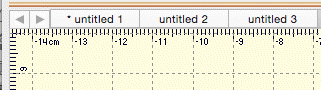
The top level of the program uses what is called a Design Page, which is related to a document or file. The Design Page is stored as a .BE file on your computer, and can contain any number of designs, each composed of any number of objects. You can have as many open Design Pages (or documents) as you like, and each is represented by a tab at the top of the main view.
The interface has a Property Page, usually visible on the lower right part of the program window. The size of the Property Page can be adjusted using the splitter bar that lies at the bottom of the Object View. You can also drag the splitter bar that lies on the right of the Main View if desired. For general interface adjustments, please review the user interface section of the program help.
When you select objects their properties are shown as tabs in the Property View. If you have more than one object of a given type, the properties of the first selected object of that type are shown.
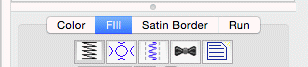
The controls for the properties mostly exist in five forms:
1. A set of buttons which let you choose which properties you are adjusting.
2. A drop-list which lets you select from a set up options.
3. An editable text field which lets you adjust a value.
4. A pop-up slider which lets you set an adjacent text field by dragging its value.
5. A check box which lets you turn a property on or off.
If you adjust a property, all the selected objects of that type will have that specific, and only that one, property adjusted. Having adjusted the property, the stitches will generate automatically. You should see the change in the stitches of the object immediately.
Color is a property of an object. Objects have one color each, except for appliques, which by definition need to stop the machine. When exporting stitches, objects of the same color that follow each other will not cause the embroidery machine to stop unless there are applique steps involved.
When no objects are selected, all of the colors for the page are visible and changeable. To change a color, simply click on it in the list.
 .
. 
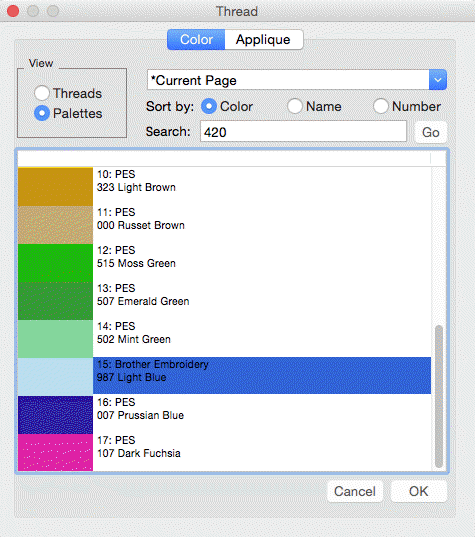
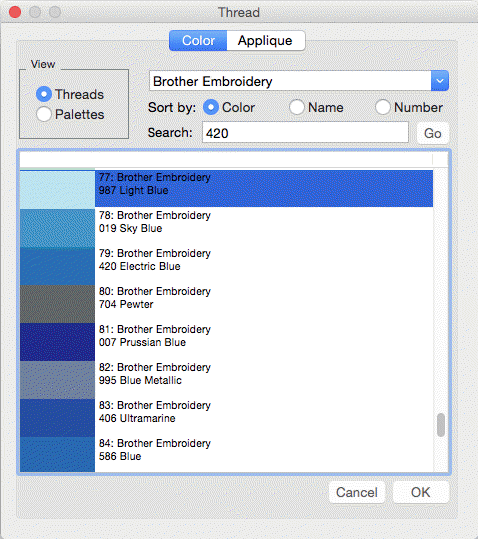
Design creators often need to utilize a palette of given colors. Sometimes these represent a customer’s job requirements, and other times it is merely a matter of needle assignment for the embroidery machine. You can create palettes at any time using the menu Utility->Threads… And you can choose to use any palette as you adjust the color properties.
You can also create a palette on the fly while creating your design. If you wish to switch to an already-used color on the current page, select the ‘Palettes’ button in the color window and you will see in the list, “*Current Page.”
The tool pane is located
below the main toolbar. When you click the toolbar button to create stitches,
you’ll see this tool pane which is divided into sections.

The first section is used to bring existing images or artwork into the program. You can load a raster image (Bitmap, Jpeg) or a Vector image (Metafile, Adobe Illustrator) or even use a TrueType font as artwork for your creation.
The next section contains view and mode options. You can hide the background images or the stitches while you are creating your designs. You can also re-sequence the objects in a mode that lets you click on them one after the other on the Main View.
The drawing tools are next. These let you create shapes, open and close outlines, add inclination and carving lines, etc.
The Stitches section is used to apply stitch types to selected objects.
The Paths section is used by illustrators to convert images into useable embroidery shapes.
When using tools such as the Magic Wand, another section becomes visible as needed to allow for adjustments to the current process.
Sometimes you want to pan the screen – in other words, move it around – while not changing your zoom, or using the scroll bars. The easy way to do this is with the spacebar key. Hold the spacebar down, your mouse cursor will change to an image of a hand, and then you can drag the screen with your mouse.
While drawing shapes or dragging during edits, it is quite common that you will need to move to part of the image that’s not on the screen. Rather than use the scroll bars, which you can, you can also move the mouse to the edge of the main window. When you get within a few pixels of the edge, the view will scroll for you in the direction of the edge your mouse is over. When not dragging, the screen will not scroll automatically.
Sometimes you want a reference line that is not on the main grid. Place your mouse inside the area of either ruler – horizontal or vertical at the top or right edge of the Main View. Then, drag, using the left mouse button and you will then be setting an guide line. You can drag these guide lines wherever you like, and if you drag one back to the ruler area from which it came, it will be removed from the page.
 Sometimes the view of the
artwork makes it hard to see what stitches you have created. You can quickly
toggle the images on and off using the Image Toggle button on the tool pane or
using the ‘b’ key.
Sometimes the view of the
artwork makes it hard to see what stitches you have created. You can quickly
toggle the images on and off using the Image Toggle button on the tool pane or
using the ‘b’ key.
The stitches generated are usually kept in view so that you can see what they are doing. However, sometimes you want to see only the outlines, and hide the stitches. This is done with the ‘Stitch View’ toggle button on the tool pane or with the ‘n’ key. This is helpful especially when editing.
Note: Stitches are not in view while drawing or scrolling.
 The Continuous View is used to
see how items will connect when embroidered in a continuous hoop, or as a
repeated pattern. It creates a set of duplicate images which let you see how
your design will connect or interact with an identical copy. The image is not an
actual design – it is just an image for reference.
The Continuous View is used to
see how items will connect when embroidered in a continuous hoop, or as a
repeated pattern. It creates a set of duplicate images which let you see how
your design will connect or interact with an identical copy. The image is not an
actual design – it is just an image for reference.

The offset setting allows you to inset a repeated element, instead of the default, 0, which aligns the image of the copy with the outer edge of the design.
In his book, Digitizing Made Easy, author John Deer writes about getting used to a particular scale or scales while you are creating a design. This allows you to learn what a useful distance in the real world will look like on-screen. The Embrilliance platform has a Preference which lets you calibrate the display to a Real Scale (See the program help on User Interface for details). Once you have done that for your computer/monitor setup, it does not need to be done again.
To get to a particular ‘zoom’ level, use the number keys. ‘1’ is a 1:1 ratio of the size of things on-screen to the real world. 3:1 and 6:1 are popular as well. If you use the number key ‘0’ you will be zoomed to your hoop.
Using a consistent set of scales is useful. Once you become well used to seeing design work at those scales, you’ll be able to know what the stitches will look like without having to sew them out. If you are zoomed too far in, you will likely be creating more detail than the design will need which slows the design creation process and can even negatively impact the sew-ability of the design.
If you are editing a design, feel free to use the zoom slider or other keys such as ‘A’ (All), ‘S’ (Selected) to work at a comfortable level. Generally speaking, unless an object outline is very large, you should be able to see the whole object on your screen while editing. Zooming in extra close can be useful to make the nodes perfectly line-up, but that is not necessary for a great design.
Note: If you have any objects selected, using the “s” key is a quick way to center the Main View on them for editing.
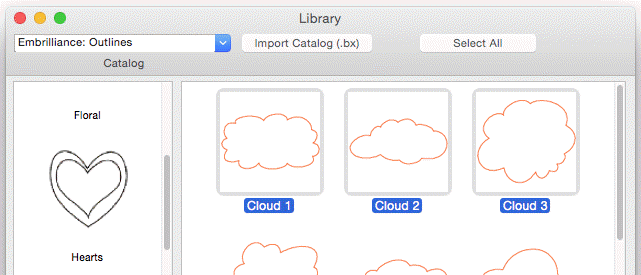
 The Library button on the
main toolbar will bring in design collections that have been published in the
platform. There are several collections included which allow you to use them in
your own work – saving you time in drawing these shapes. When bringing in a
library shape, the program uses the current page’s view center and zoom level to
determine where it will come in. Once it has been brought in, you can size and
place it as needed, even edit its outline, as if you had drawn it yourself.
The Library button on the
main toolbar will bring in design collections that have been published in the
platform. There are several collections included which allow you to use them in
your own work – saving you time in drawing these shapes. When bringing in a
library shape, the program uses the current page’s view center and zoom level to
determine where it will come in. Once it has been brought in, you can size and
place it as needed, even edit its outline, as if you had drawn it yourself.
The Library has been extended to include hundreds of outlines that you can use with StitchArtist to make your own designs. They are even royalty-free!
Designs and objects will create themselves as you begin drawing and as a result of copy/paste operations. But there are some options you should be aware of.
Each design page, which is represented by a working file (.BE) is selected using the tabs at the top of the main window. Each page can contain any number of designs. Sometimes it is useful to break up your work into discreet areas that can be managed as a unit. Designs are the mechanism for this. For example, suppose you make a nice rose. Now you want a bouquet. You could make the rose as a single design, and then place it in multiple positions and sizes to complete your image.
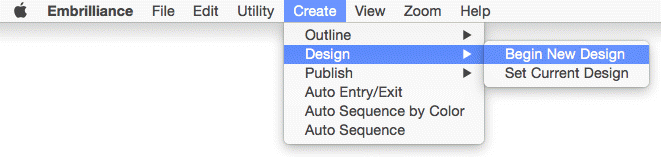
If you have no designs on the page, one will be created for you when you either bring in artwork or begin to draw. However if you wish to switch to a new design to begin drawing a separate piece, you use the menu Create->Design->Begin New Design.
If you are working back and forth between multiple designs, when you draw new objects you will need to decide where they go. To do this you have options:
1. Select the design in the Object View, and then use the menu Create->Design->Set Current Design.
2. Select an object in whichever design you wish to work, and begin drawing. Your new object will appear in the sequence following the object that was selected.
In computer graphics there a two basic ways to create an image and those are called “bitmap” and “vector.”
 There are buttons to
allow you to bring in artwork from files. To use an image file such as a .bmp or
.jpeg as a backdrop for your design, click the “Image…” button.
There are buttons to
allow you to bring in artwork from files. To use an image file such as a .bmp or
.jpeg as a backdrop for your design, click the “Image…” button.
Once you have selected an image, the program will automatically begin a design for you (if you haven’t already), and place that image as a new object in the design. The image is selected and can be scaled or rotated, squished, etc. The images used for backgrounds generally are preferred to be semi-transparent, and that is also set for you. You can do whatever you like with the image at this point to help you begin creating stitch objects on top of it.
Once you begin making other objects, the image itself will lock into place. This means you will not be able to accidentally select or move it while you are creating your design. You can still edit it by selecting it in the Object View. There, you can even unlock it. Generally, once a stitch object has been placed over an image, you don’t want it moving around.
Note: The Image button works for pixel-based images such as photos and scans. Files created using vectors are not pixel-based images, and do not load using this function. See the section on Vectors for information about loading those.
Bitmaps are also known as “raster” images, which might be more technically correct but the terms today are used interchangeably. Bitmap images are composed of different colored dots. Images such as photographs fit into this category. Bitmap representations of art are the preferred type to create stitches from; they come in as background images over which you will create stitch objects.
When using a bitmap image, there is the issue of “resolution” which refers to how many dots called “pixels” are being used. The more pixels, the better the clarity of the image and fewer pixels make for an image that has little stair-steps in it when you zoom in. One might think that more pixels are better. However the program has to do a lot of work while you are drawing your design and an image with a lot of pixels makes it take that much longer to do each step while you are working. So it makes sense to use an image that is not super-duper-hi-resolution.
When deciding what resolution you want to use, or how many pixels should be in the image, it is worth considering how that will match up to the embroidery design itself. In an embroidery design the most common density of a stitch is about 0.4mm or 4 stitch points. This equates to a resolution of 64 DPI (Dots Per Inch) and that means that a typical 4” (100mm) square design would only need an image of 250 pixels on each edge. The normal smartphone will give you thousands of pixels on an edge, so any photo today probably has more than enough resolution for what you need.
We recommend, for simplicity, that you keep your image to around 1000 pixels on either edge. You can go for more if you’re making a super large design, naturally, but otherwise this is a good number. A lot of graphics that exist on the internet are 1024x768 or 800x600 because these are common web sizes. And those images have plenty of resolution for you to create embroidery. If you are making a 14” design, you might want to bump that to 1500-2000 pixels on the widest edge. But remember more is not always better.
 Vector files are artwork
themselves. These files are brought in as objects. The user must realize that
graphics files contain objects with outline weights (thickness) and all sorts of
color properties that are inapplicable to an embroidery design. As such, when
importing vectors, the outline and its color are all that are brought in. For
some designs, this saves the user the work of having to re-draw the image.
Vector files are artwork
themselves. These files are brought in as objects. The user must realize that
graphics files contain objects with outline weights (thickness) and all sorts of
color properties that are inapplicable to an embroidery design. As such, when
importing vectors, the outline and its color are all that are brought in. For
some designs, this saves the user the work of having to re-draw the image.
Vector images are outlines filled with color – think of a company logo, cartoon, comic or coloring book.
As vector images already have outlines in them, and embroidery objects have outlines too, it might seem reasonable that starting with a vector-based image is better for this purpose. You would have little to draw because the art is already there for you. Simply set the stitch properties and you’re done, right? Well, you can, and we do import them for that purpose, but…
…In actuality that is rarely the case.
Vector artists can do things with their objects, such as ‘overlapping,’ which makes embroidery of the outline completely impossible. Also the shapes can be directly adjacent, which will leave gaps in embroidery. And vector artists jump from color to color and back again very casually. You don’t want to attempt this with embroidery. So, while the allure of using vector files is there, it actually can take more work to make a vector-based image work for you than simply creating objects over top of a bitmap image.
Another common problem using vector based images is that of the original source. There are a lot of clipart companies in the world, and they offer their product in a variety of file formats. When an artist submits an image that was created as a bitmap, the company then uses a program to ‘auto-trace’ the outlines in the image so that you, the customer, can get your ‘vector’ version of it as an EMF or WMF or AI file, etc. Those files are almost universally the worst thing to use for the reason that they contain as many as one hundred times the number of outline nodes as needed, and they are often ‘line’ nodes which means the stitches that will be generated will have to stop at each node.
Given these inherent difficulties, Level 3 has added features that let you overcome these problems.
However, for all these reasons we suggest you always use a bitmap picture - .bmp, .jpeg, etc. That is unless you yourself are the artist or whoever is creating the vector files as the original format and have done so with embroidery design in mind.
 TrueType fonts exist as
single-color outlines in your computer. As many logos began life as a TrueType
font, you may want to use one as the basis for your design. There are many
free-to-use fonts available on the internet, although some require payment if
you use them. Check the font’s license to be sure, especially in commercial
circumstances. For this purpose, let’s assume you have either permission or
freely licensed fonts.
TrueType fonts exist as
single-color outlines in your computer. As many logos began life as a TrueType
font, you may want to use one as the basis for your design. There are many
free-to-use fonts available on the internet, although some require payment if
you use them. Check the font’s license to be sure, especially in commercial
circumstances. For this purpose, let’s assume you have either permission or
freely licensed fonts.
When you select text in a given font, the computer provides that in outline form. Each outline is given as an object. For example the lower-case letter ‘i’ will usually have two objects; one for the dot and one for the stroke. You can use these outlines as stitch types anyway you want. You can make them outline designs by applying a run, or you could use the art for satin stitches. You could even make them huge and set them to a fill, cross stitch or applique. It’s just a piece of art as if you had drawn it yourself.
You may use the drawing tools in the program to create your own art. There are enough tools there to do it, however, graphics packages will offer more flexibility in terms of things like pen nibs and gradient colors, but those are very different in embroidery when compared to graphics. Therefore the drawing tools in this program are geared toward stitch generation – you are literally drawing with stitch-generating shapes, making you a Stitch Artist.
As we explore the process of design creation, we need to get some terminology out of the way. If a word stumps you while reading halfway down a page, your brain will get stuck there and not retain anything else you’ve read. So let’s do some vocabulary, and at the same time, learn a few things.
Objects are the building blocks of the design. There are different types of objects, and their order or “sequence” is the order that the embroidery machine will sew them. Let’s look closer at what these really are.
Objects contain outlines, colors and stitch properties. As such we usually refer to the object by its stitch type, for example we may say it is a “Run object” or simply a “Run.”
When you have selected an object you may want to change its stitch type. You may at any time change any object from any stitch type to any other.
Some stitch types make use of the shape of the outline itself – for instance, the shape of a Run is where the run will be placed – along the outline. In contrast, a Fill would place stitches to cover the inside of the shape. When a stitch type is used that fills a shape, the outline will need to be “closed” and this happens automatically.
Objects have one stitch type. In StitchArtist, you are able to apply any stitch type on any object. Thus you could copy and paste an object and change its stitch type, thus having a ‘Fill’ and a ‘Satin Border’ around it. This allows you to adjust the outlines for each: In the real world of stitches on fabric, shape adjustment of the outline will need to happen in all but the most simplistic of designs.
When loading artwork for use as a backdrop for stitches, you may load as many images as you want. Each will be added to its own object. Ordinarily the first thing you would do when creating a design is to load the artwork, position it on the design page, perhaps select a destination hoop size, and then resize the image to that size. You can also rotate, stretch and mirror the image as needed. The image will display with a default transparency, which can be adjusted using the “Bitmap” property page for the image.
Once you begin creating stitch objects on top of that image, the image will “lock” automatically in place. This is the same as if you lock it using the Object View toolbar buttons. A locked object means that it cannot be selected by clicking on it in the main view, if it isn’t already selected. Any locked object can be selected using the Object View. So it is possible to move or alter the transparency of the image even after you have begun to add stitches, if you care to do so.
The platform is designed for the greatest flexibility in design creation. This is to suit amateurs and experienced users alike. But that flexibility requires some minimal explanation before you set off.
This is a chicken or the egg question. Any object may have its stitch type set to anything. And that can happen during drawing, or after drawing. What this means is that you can draw an outline, then assign it a stitch type. Or you can click a stitch type and then click a drawing mode to begin. There is a catch with this order of operation though – If an object is currently selected, and you click a stitch type, that selected object now becomes the new stitch type.
To clarify, if you want to begin a new object by setting its stitch type and then setting the input mode for drawing, make sure you don’t have anything selected first. Click on the design page background to have no objects selected.
Input Type First
If you prefer, you can select an input type, for example Point input mode, then select the type of object it will be, for instance a Fill. When you complete the outline, and the stitch type is set for Fill, the program knows that you will also want to draw an inclination line to set the angle, so it will automatically put you into that mode as soon as the outline is complete.
Some of you will prefer to first make your artwork as ‘Line’ objects with no stitches present, and then later set the stitch types. This is perfectly acceptable. Simply begin drawing. If there is an object selected, the new object type will switch to ‘Line’.
Often you will create a series of objects that are the same stitch type, for example: Run, Run, Run. In this case, after your first object, make sure to click off it so that it is not selected. When you start drawing the object type will be picked up from the previous object. Alternately you can type ‘q’ to begin drawing an object using the input method and stitch type of the last-drawn object.
The creation of objects is also likely to cover one or two object types, repeated, one after the other. For example: Run, Satin, Run, Satin, etc. Or, another example: Run, Double, Run, Double.
For this circumstance, you can quickly begin creation of an object with two hotkeys: ‘q’ and ‘w’. These let you begin creating an object using the exact method of the last object (‘q’), or the one prior to it (‘w’). These hotkeys will not only select the object stitch type, but also the input mode as well – you can begin drawing immediately. For more keyboard shortcut information, please see the Keyboard Shortcut section.
Normally when you begin to draw a new object, it will be placed at the end of the current design. If you wish it to be created in a specific place, select the object that will sew before the object you are about to draw, and then begin drawing your object. This is useful if you wish to go back through your design and create connective runs between segments, or if you simply forgot a piece.
Often you will have a lot of objects, and sometimes you’ll want to find a selected object in the Object View quickly. Select it in the Main view by clicking on it, and then use the context menu option, ‘Reveal in Object View’. This will work only for the first selected object, if multiple objects are selected. The Object View will scroll to position and expand the design containing the object.
Drawing is the main bit of work used to create a design. This section will let you know about various drawing methods.
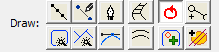 (Level 3
shown)
(Level 3
shown)
Objects are usually shapes called “outlines”. The outlines are created by you, the user, drawing on top of a piece of artwork, importing a piece of artwork called a “vector file” or with the assistance of a Magic Wand (if you prefer not to create the shape yourself). An object’s outline may also contain one or more “holes,” also interchangeably called “voids.”
Objects will usually contain stitching of a certain kind, for instance a satin-stitched column.
The outlines are shaped using points on the shape called “nodes.” There are different kinds of nodes, and there are many things you can do with nodes to change the shape of the object. When you click on a node, you are highlighting it and its appearance will change to show that highlighted state. When the program sees that you have highlighted a node (or nodes) it will change what it does with your input based on that fact. For example, using the ‘delete’ key on an object that has no nodes selected will delete that object. However if you have selected nodes, then the delete key will delete those selected nodes.
Note: You do not need to switch modes to reshape an outline. You click an outline node to highlight it. If you wish to work with the object as a whole, either ctrl-click the highlighted node, or click off the object and then back on it. When none of an object’s nodes are highlighted, you are able to move and re-size the object using the handles that appear.
The underlying implementation of graphics in the platform uses Bezier curves, named after the man who first made use of them to design car bodies. Why do we use them here? Because the world has adopted these annoying-but-useful little curves; and all drawing packages, CAD packages and design software understands them, so there are a lot of people who have been trained in their use. Are there better solutions? Well, yes, but let’s not get into that right now, lest we upset the Math Police.
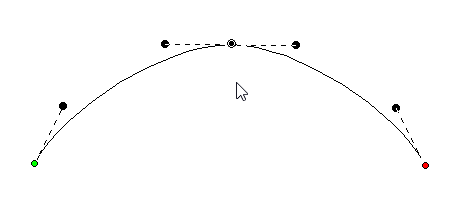
The idea of a Bezier curve is fairly simple. You have a start point and an end point, and a curved line that runs in between them. If you have a series of these, you can draw any kind of shape. The fun part is that the curve between the two endpoints is controlled by two ‘Handles,’ one connected to each node. In a simplified way, the first handle (which is connected to the start point) will determine how the line will curve as it takes off from the start. Likewise, the second handle will determine how the line comes in to the end point.
The benefit to embroiderers using these curves is scalability; Size does not matter. So if you make a Run stitch object using a curve, those stitches will generate nicely on that path at virtually any size, and the sewn result will be a nice clean curve even when made large.
 When creating and editing
outlines for shapes, you are always creating a Bezier form. For beginners who
are inexperienced with Bezier there exists an option to work without “handles,”
both when inputting a shape and when editing a shape. When the Bezier handles
are hidden on an object, you can edit the outline by moving, adding and deleting
nodes. This type of outline is known as a ‘spline’. The limitation is that you
cannot change the shape of the curve between outline points. That is where the
normal Bezier handles come in. You can switch any object at any time between
spline and Bezier, just be aware that when you go to spline, your edits between
nodes will be lost. Generally we always recommend that you learn the Bezier and
we have made every attempt to ease you into that.
When creating and editing
outlines for shapes, you are always creating a Bezier form. For beginners who
are inexperienced with Bezier there exists an option to work without “handles,”
both when inputting a shape and when editing a shape. When the Bezier handles
are hidden on an object, you can edit the outline by moving, adding and deleting
nodes. This type of outline is known as a ‘spline’. The limitation is that you
cannot change the shape of the curve between outline points. That is where the
normal Bezier handles come in. You can switch any object at any time between
spline and Bezier, just be aware that when you go to spline, your edits between
nodes will be lost. Generally we always recommend that you learn the Bezier and
we have made every attempt to ease you into that.
Note: If you want to quickly reshape a Bezier curve but don’t understand the handles, we have added a feature that lets you drag on the outline, between two nodes, and the outline will follow your mouse, adjusting the handles automatically. This is also very handy when you want to quickly draw with a very minimum of nodes, (very good for re-sizing later).
‘Nodes’ and ‘Knots’ mean the same thing as used here, and that is they refer to the outline points which are drawn and selectable.
Some things you can do with nodes on an outline:
• Select a node by clicking on it.
• Edit nodes by dragging them around.
• Add nodes by double-clicking where you want one to appear, and you can double-click a node to remove it.
• Drag around a set of nodes, in which case you will select all the ones in your “lasso”.
• Right-click while nodes are selected and change properties and do other things with the outline.
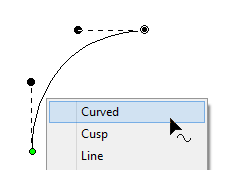 When a shape is drawn, it
goes from one node to another. It can either form a straight line to the next
node, or it can form a curve going ‘through’ that next node on its way to the
one that follows. The advantage of curves is that when you scale the design up
in size, the result is a nice smooth outline. If you draw with all ‘lines’, as
many have done in the past, you are severely restricting the useful size of the
outline you are creating. For this reason, we normally draw with curves, and you
can switch to a line as you enter points (for example by holding the ‘ctrl’ key)
or you can do it after the design is created.
When a shape is drawn, it
goes from one node to another. It can either form a straight line to the next
node, or it can form a curve going ‘through’ that next node on its way to the
one that follows. The advantage of curves is that when you scale the design up
in size, the result is a nice smooth outline. If you draw with all ‘lines’, as
many have done in the past, you are severely restricting the useful size of the
outline you are creating. For this reason, we normally draw with curves, and you
can switch to a line as you enter points (for example by holding the ‘ctrl’ key)
or you can do it after the design is created.
If you think about it, straight lines are not ‘natural’ except in math; only people create things in the real world with perfectly straight lines. So curves and cusps are very useful, unless of course you are making a geometric design.
Notes: ‘Curved’ and ‘Line’ node types refer to the path coming toward the node. The path leaving the node is controlled by the following node.
A ‘Cusp’ allows two curves to go in different directions away from a common node, whereas a ‘Curved’ node creates a smooth line through the node, transitioning between the two curves smoothly.
Here is an example of a curved node in the middle, and a hard point at the end. See how the path is a flat line going toward the final point. The path shape is defined by the node it is going toward.
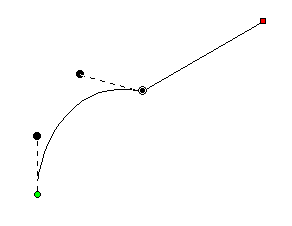
A straight line will not have handles. There is no need, as there is nothing to adjust. If you want to make it curve, change the node type.
On any path, there is a green node that indicates the start, and a red node that indicates the end of the path. A closed shape will naturally have the end positioned over the start, so it appears red.
If there are only two nodes in a path, you have a section. The section can be a line or a curve, depending on the later node type. If you add a third node at the end, and that one is also a curve, now you have a choice as to what to do with the curve as it passes through the middle node. It can be smooth-flowing, in which case the curve looks like one continuous line. Or, it can be disjointed, making two distinct curves, in which case it is called a ‘Cusp’.

This image shows a selected curved node in the middle of a 3-node path; its handles coming in and going out indicate the travel of the stitches. The handle coming in is in a line with the handle going out, thus the curve is quite smooth at the node – it is almost like the node is not there, other than to direct the path.
Remember, smooth curves are created by at least three nodes: an initial starting node, a middle node that the curve runs through, and an ending node. You can click a long smooth curve that runs though as many nodes in the middle as you want, but naturally there’s always a start and an end.
The alternative to a smooth curve is to have a node that comes ‘in’ from one direction, but leaves in another. This is a ‘cusp.’ Cusps are important, as they make the hard turns where curvy bits intersect – such as the top of a heart or in shapes of leaves, or almost anything in nature.
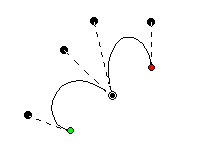 A cusp allows you to have
two curves come together on either side of a point. For instance the apex in the
top, center of a heart-shape is a cusp. Traditionally digitizers would make a
curve that falls just short of the cusp and then make a line to the cusp, and
then they would begin a new curve going off to the other side. This has the
negative effect of that hard line being visible, especially when scaled. It also
produces a needle penetration where it isn’t needed. We’ll discuss more on this
later.
A cusp allows you to have
two curves come together on either side of a point. For instance the apex in the
top, center of a heart-shape is a cusp. Traditionally digitizers would make a
curve that falls just short of the cusp and then make a line to the cusp, and
then they would begin a new curve going off to the other side. This has the
negative effect of that hard line being visible, especially when scaled. It also
produces a needle penetration where it isn’t needed. We’ll discuss more on this
later.
Use nodes where the path switches from turning left-to-right or vice versa. And then when turning, place a node at the ‘widest’ point in the turn if you need an additional node. This will yield the fewest number of nodes needed to make the shape. Remember you can add nodes later, or adjust the curves, if you need to refine the shape.
It is good to use minimal nodes to complete your shape, and then go back and edit the curves to get the shape you want. The result will be a nicer object shape and better embroidery. It takes practice, but you’ll find that you can quickly analyze a shape and create it in very few clicks, and then the edits required will be much easier.
Normally in graphics a “Closed” shape or outline means that its start and its end meet up visibly. A shape that is closed can contain stitches within, and can also have “holes.”
 When drawing a shape for
embroidery, you may wish to have the end-point meet up with the start-point
without calling the shape “Closed.” For this purpose, there is a button on the
tool pane which lets you specify that a shape is closed or not. Only closed
shapes can contain holes.
When drawing a shape for
embroidery, you may wish to have the end-point meet up with the start-point
without calling the shape “Closed.” For this purpose, there is a button on the
tool pane which lets you specify that a shape is closed or not. Only closed
shapes can contain holes.
You can open an outline by clicking the ‘Close/Open Outline’ button up. You will not see a change in the shape, but you can now move the head and tail nodes away from each other. The tail node will be red.
If you have a node selected when you open the outline, that node becomes the new head/tail of the outline.
The Point Input method is the most commonly used method, and for most people, it is the easiest. Click the Point button in the Tool Pane and then start clicking along the line you wish to make.
 As you create your shape,
you can create curved nodes with a normal left-click, line nodes are made by
holding the ‘Ctrl’ key during a left click, and cusps are made by holding the
‘Shift’ key down during a left click.
As you create your shape,
you can create curved nodes with a normal left-click, line nodes are made by
holding the ‘Ctrl’ key during a left click, and cusps are made by holding the
‘Shift’ key down during a left click.
You can use the ‘backspace’ or ‘Delete’ to remove points you have entered. You can cancel the drawing using the ‘Esc’ or ‘Escape’ key.
When you have completed your shape, you can end it by right-clicking. If you wish to end the shape and also close the outline at the same time, hold the ‘ctrl’ key while right clicking.
While entering points along the outline, you do not need to worry about the Bezier handles – they are created for you using some ‘reasonable’ values. Once you have created your shape, if you want to adjust the handles, you can. Or you can ignore them entirely if you prefer. We’ll talk about that shortly, in the ‘Editing Outlines’ section, subtitled “Working as Spline/Bezier”
 This sounds like the most
fun input method, and it is, but it is far from accurate. The freehand input
lets you doodle. You hold the mouse down and drag around. Where you went gets
smoothed out and turned into a curving path. You can click for a line to a
point, and then drag along some more. You can drag and release any number of
times to create lengthy and intricate paths if you wish.
This sounds like the most
fun input method, and it is, but it is far from accurate. The freehand input
lets you doodle. You hold the mouse down and drag around. Where you went gets
smoothed out and turned into a curving path. You can click for a line to a
point, and then drag along some more. You can drag and release any number of
times to create lengthy and intricate paths if you wish.
This is useful in practicality only with the Run stitch type. Drawing freehand on a computer requires practice, and the more fluid your input is, the better the result will be. Do expect to spend some time cleaning up your handwriting!
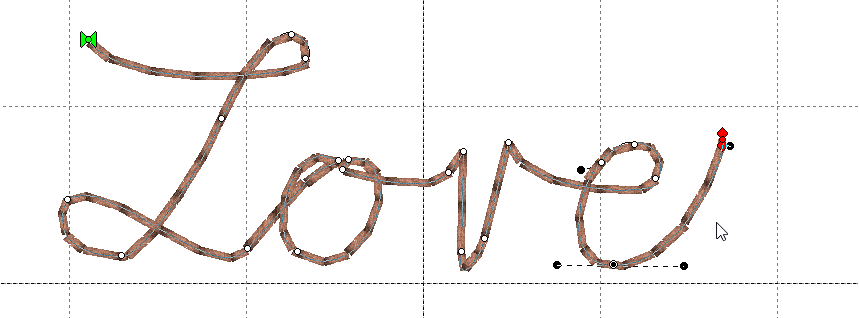
As with other input methods, right-click to end your input. Holding the ‘Ctrl’ key when right-clicking will close the shape.
Bezier Input (Level 2)
 The professional graphics
industry has adopted this method of input and it takes getting used to. Select
the Bezier Input method using the button on the Tool Pane. To begin, click and
drag. This will create an initial Node and a Bezier handle. The next time you
click and drag, you will be creating the points needed to complete a Bezier
curve section, and also begin the next one.
The professional graphics
industry has adopted this method of input and it takes getting used to. Select
the Bezier Input method using the button on the Tool Pane. To begin, click and
drag. This will create an initial Node and a Bezier handle. The next time you
click and drag, you will be creating the points needed to complete a Bezier
curve section, and also begin the next one.
If you simply click, you will create a flat curve – a line.
To create a cusp, hold the ‘ctrl’ key down when you click and drag.
Right-click to end your input. Holding the ‘Ctrl’ key when right-clicking will close the shape.
We have made the editing of outlines work in two modes, Bezier and Spline. To understand spline, imagine something flexible, but with a little bit of spring to it – in the original context a spline was a light piece of wood that could be shaped around things. In this use, it is a line that flexes around ‘Nodes’ on the screen (where you have clicked). The more clicks you give, the tighter the spline will have to bend in order to conform to the shape you want.
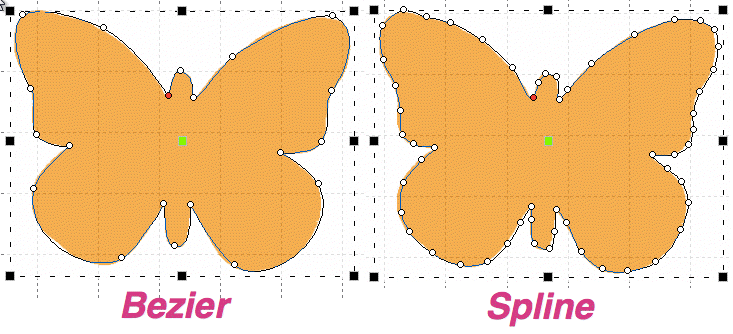
Bezier lets you adjust the curves using handles, as we have discussed. Now you get to decide how you will perform your edits.
The Spline/Bezier button
on the Tool Pane will toggle all the selected objects to either show their
handles, or hide them. Remember, if you switch handles off, the outline will
change to its automatic shape, and you may have to add some nodes in order to
recover the curves. Spline mode will almost always require more nodes than
Bezier.
If no objects are selected, this button also sets how your next objects will be treated, once drawn. This button also acts as a program preference, so if you choose to always work with Bezier, the next time you run the program this will determine the state in which you start.
You can select a node by clicking on it. You can use the Ctrl key while clicking to select multiple nodes. If a selected node is clicked with the Ctrl key it will be de-selected, as is typical with virtually all computer systems.
You can also select nodes by dragging around them. First, select the object that you would like to edit. Then drag around the nodes you want. When you release your mouse button, the nodes inside the area you dragged will be selected.
You can also operate on holes, carving lines and breaklines in this manner – drag around the nodes you wish to adjust.
Double click on the outline to insert a node. Double click on a node to remove it. If you have a node or nodes selected, you can also use the ‘Delete’ key to remove them.
You can switch the type of any selected nodes by right-clicking, which will bring up a pop-up menu. The node types are Curve, Line and Cusp, as we have discussed. Remember that a curve will allow stitches to pass through it without forcing the needle to stop at the node, but by necessity of the shape, lines and cusps will cause the needle to land on those nodes.
Sometimes an inclination line will be made very near a node. If that node is moved so that the inclination line is left in empty space, the incline will be removed automatically. We suggest you adjust your outlines first, then go back and add and adjust your inclination lines.
Sometimes you will obtain a file that claims to be in vector form, but is actually an auto-traced image. These are common from clip-art websites, even the big ones. This leaves a series of nodes touching each other as they go around the outline. You can use the menu ‘Create->Outline->Reconstruct Outline’ to simplify the artwork.
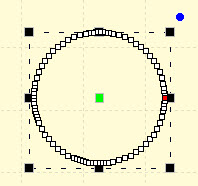
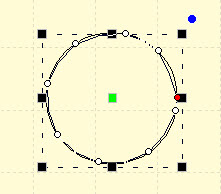
Left: before. Right: After Reconstruct Outline
Spline mode has the ability to insert and remove nodes to adjust the shape. If the curve is too far away from the outline you want, simply add more points on the outline where the shape you have is ‘most different’ or furthest away from the artwork.
It is often best to begin with minimal nodes in the outline, only basically representing the shape you are drawing. Then, go back and insert only the nodes that are needed to pull the outline into shape. Doing it this way, you will use a minimum of nodes.
Why use a minimum of nodes? The stitches being generated have to look at all the nodes on your shape. If you insert hard nodes or cusps, the needle will penetrate at those nodes, so you get less desirable embroidery and an increased stitch count. Another reason to use minimal nodes is for editing purposes. Suppose you test sew your design and realize you need move overlap for registration issues – the fewer nodes, the easier and faster the edits can be accomplished.
Editing paths with Bezier handles exposed is not hard, and is very intuitive once you get past the first few minutes or so.
Editing is accomplished by dragging the handles, which adjusts the curve as you drag. You can also drag the outline itself into place, which will adjust the handles for you. When dragging the outline, the closer you are to a node, the more that node’s handle will be adjusted, rather than the one you are farther away from. Because this can make your handles go ‘wild’ we do not let the outline drag if you grabbed it within 5% of the ends of the outline in either direction. It is best to grab the curve somewhere in the middle and drag it, then adjust the handles to perfect the shape.
Note: Sometimes art will have the handles ‘hidden’ under the nodes. Drag the outline and the handles will move, exposing them so you can drag them around as needed.
Here’s a step-by-step example of making use of minimal nodes while drawing, and good use of re-shaping: Make a heart, starting at the bottom, using all Cusps (Shift key). You only need four points! Ctrl-right-click to close the outline:

Next, hover your mouse over the curve in between the top left two points as shown, and drag the curve up. You will see the shape beginning to appear. Repeat the drag for the other side. In the example above, we’ve made the sides smooth too. Do any editing desired for the overall image, and you have a low-node-count shape that looks great!
There are also some tricks which we would like to share.
Trick 1: A favorite old movie of ours, Ghostbusters has the line, “Don’t cross the streams!” In the movie, it implied that ‘Bad Things’ could happen. What we’re saying here is, “Don’t cross the handles.” It’s not that you cannot cross the handles – you can – but certain object types will not understand what it is you’ve done. So we discourage it.
Trick 2: Another thing to consider is that the handles should generally be in the direction of the travel of the path. If you have your handles pointing away from the travel of the stitches, then the stitches may do a “Two-Step” which you might not want to happen.
Trick 3: Sometimes you will inadvertently wind up with a handle hidden under the node it is attached to: it is a handle with no length. You can recover these by mousing-down in the middle of the curve and dragging the outline, which reorients the handles for the curve you are dragging. Once the handles are exposed, you can position them as needed.
Trick 4: Use nodes where the path switches from turning left-to-right or vice versa. And then when turning, place a node at the ‘widest’ point in the turn if you need an additional node. If you have extras, you can delete those and adjust as desired.
 Holes or ‘voids’ can be
added to artwork for stitch types that use them such as Fills.
Holes or ‘voids’ can be
added to artwork for stitch types that use them such as Fills.
In order to be able to add a hole to a shape it must not only appear closed, but actually be closed. You can tell by looking at the ‘Close outline’ button on the Tool Pane when the object is selected. If the button appears depressed, the shape is closed. If not, you can click the button to close the shape.
Not all stitch types allow holes. When it is allowed, the ‘Add Hole’ button on the Tool Pane will be enabled. You can push this button and then begin drawing the hole. Right click to complete your drawing as with any drawing operation. To add another one, simply click the button again. There are no limits to the number of voided areas (holes) that can be on a shape.
The hotkey for adding a hole to the currently selected object is ‘o’.
If you have drawn several objects, or used path operations to create them and you want to combine holes from multiple objects, select all the objects and use the menu Create->Outline ->Combine Holes.
Holes can be removed by selecting a node on the hole and using the right-click pop-up menu entry, “Delete Hole.” To remove all holes from an object at once use the menu ‘Create->Delete Holes’.
Similarly you can separate the hole into a new object, as an outline, with the right-click pop-up menu entry, “Separate Hole.”
If you have multiple objects with original art that has holes, but you would like to separate them out as individual objects, use the menu Create->Outline->Separate Holes.
When you have two or more lines that should be connected, use the menu Create->Outline->Connect to make them into a single line. While you are drawing, it can happen that you end the drawing before the outline is fully created. You can simply create the rest of the line as a separate object, then select both and connect them.
When connecting lines, the head and tail of the first line in the sequence are preserved, and thereafter the lines that are being connected to it will be reversed as needed to ensure the nearest connecting point. You do not need to have your line endpoints adjacent, as a connecting line will be added for you if needed.
When you create a line, there is a point where you started and a point where you ended. If you wish to reverse the direction of points on the line, use the menu Create->Outline->Reverse Points.
Generally, the outline order is not very important for the creation of stitches. You may, however want to use this when working on connecting shapes you have made.
You can select two points across a closed outline and break the outline into two using the context menu option ‘Break across’. This is sometimes useful in logo or promotional designs, where you have original shapes, but want to separate them and insert a word or other design element in between.
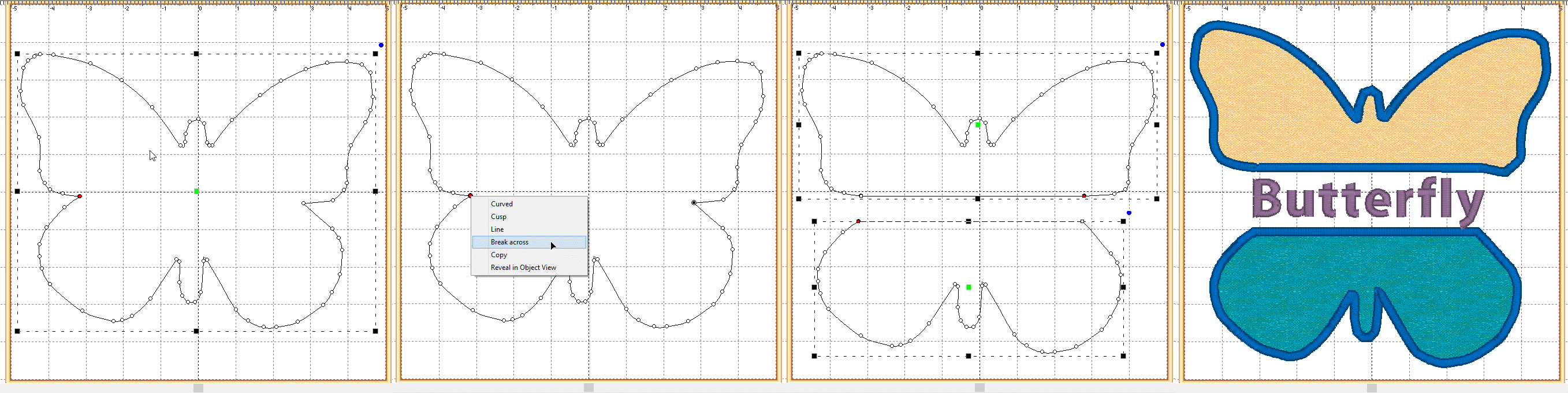
If you have an open shape selected, with one or more nodes in it selected, the context menu option, ‘Break at point’ will split the object into multiple objects.

Sometimes you’ll need to turn a shape with a hole into a continuous outline, such as to make a satin stitch. To accomplish this, select two near points, one on the outline and one on the hole. Then use the context item, ‘Connect to hole.’ The hole is now part of the outline, as shown:
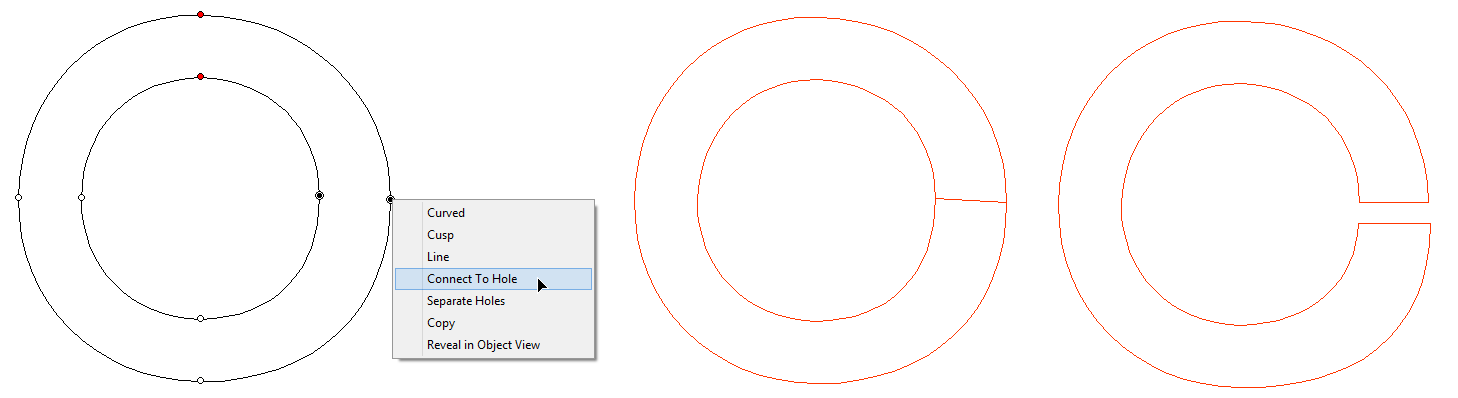
 While not directly used
in defining a shape itself, there are Entry and Exit points that accompany
outlines once a stitch object type has been assigned.
While not directly used
in defining a shape itself, there are Entry and Exit points that accompany
outlines once a stitch object type has been assigned.
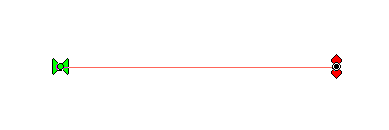
These Entry and Exit points indicate the preferred location of the beginning and ending of the stitching process. In the illustration, the stitching would begin at the green handle on the left, and finish up at the red handle on the right. You can drag the handles around anywhere on the outline. You cannot drag them to a hole, if the shape has one.
There are some object types where the stitching follows an algorithm that comes back to a single point. Those object types are noted in their respective sections. Entry and exit points are used to limit the number of jump stitches in a design. By having the objects end and begin at near-most points, the transition stitch between the objects is minimized.
The Entry point on an object is where the stitching will begin, and Exit is where the stitching will complete. The purpose of adjusting the entry and exit is to minimize (or eliminate) traveling runs needed to move from one object to the next. This also lowers the stitch count.
Note: Usually you will want to set the Entry and Exit points after you have sequenced your objects.
Most stitch generation has the availability of adjustable Entry and Exit points, although some only use the Exit such as Stippling, where stitching is continuous.
Entry and Exit adjustments are usually not noticeable in the resulting stitches except for Runs. Runs by definition have styles such as Single, Double, Bean, etc. When you have a single run enter and exit at the same point, you are going to have a double-run result. The exit handle forces the stitches to run to the exit, over top of what’s been stitched. This can be handy when creating redwork or running-stitch designs as you may set the Exit Handle as needed, and not worry about changing the property to a double.
Entry and Exit on a stitch object are controlled by the green (Entry) and red (Exit) handles on the outline of the object. Drag the handles to the point on the outline as desired. Generation of stitches is automatic.
Use the menu Create->Auto Entry/Exit to set the Entry and Exit handles on selected objects. The ‘Automatic’ process looks for the nearest points on the objects if they don’t touch, or to a point where they touch, if they do.
 The Magic Wand is a tool
used to create outlines from bitmap images. There are two styles – a wand for
filled areas, and a wand for lines. The Line Wand tool is available in Level
3.
The Magic Wand is a tool
used to create outlines from bitmap images. There are two styles – a wand for
filled areas, and a wand for lines. The Line Wand tool is available in Level
3.
When you turn on the Magic Wand, you can click on the backdrop image and the Wand will look at the color where you clicked, find all pixels (dots) around it with a similar color, and then make an outline out of all of those similarly-colored pixels. The shape that a Magic Wand creates will not be as clean as one drawn by hand, but they are fully editable, and can be an effective way to get started on some simple projects.
Note: When you like the wand result, right-click to end the wand to keep what you’ve made. If you click the Wand button again, or hit the ‘Esc’ key, you cancel the operation.
Because images differ in quality, when you click on the wand, the Sensitivity controls will appear. A low number of sensitivity means the pixels it is looking for will be very similar to the one on which you clicked. If you have an image with a mottled texture, for instance a piece of scanned fabric in the picture, you can make the sensitivity large, for example use 150, and the outline will be expanded to include more pixels to get a better outline.
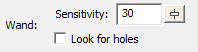
As you adjust the sensitivity the wand will re-wand where you clicked automatically. You do not need to click again.
Important: When you like the wand result, right-click to end the wand and keep what you’ve made.
The wands will create as many objects or holes as you like. Once your sensitivity has been adjusted and you have an outline you like, simply click the wand again in another area to begin making a new object. Right-click to end object creation once all objects have been wanded.
Expand the Object View to watch the objects get created – sometimes a higher sensitivity will result in fewer objects or outline nodes, which is desirable. Other times, higher sensitivity can add ‘noise’ in the edge, or even fail to find a shape at all when the outline and background are similar.
The first wand button creates an outline around areas filled with a consistent color.
You can also use the wand during an ‘Add Hole’ operation.
Normal graphic fills, such as those from a cartoon image will not need a high sensitivity to the color used. You can reasonably use the default number. If the image is scanned from a print, you might need to increase the sensitivity a little. Try different levels to see what you get. Note that some large images with a high value for sensitivity can take longer to wand.
The second Magic Wand is for line drawings and line areas in a cartoon-style image. The color you click on has all of its pixels gathered and thinned to make a running-stitch object. The line drawing may be very complex, and the Line Wand will create as many objects as it needs to in order to stitch around the entire design doubly. This is useful for automatic outline or redwork designs. The Line Wand will set all the Entry and Exits and create a double-run design ready to sew.
The objects that are created also have Styles used. You can adjust these styles, thus adjusting the style of the result. Please refer to the Styles section for details.
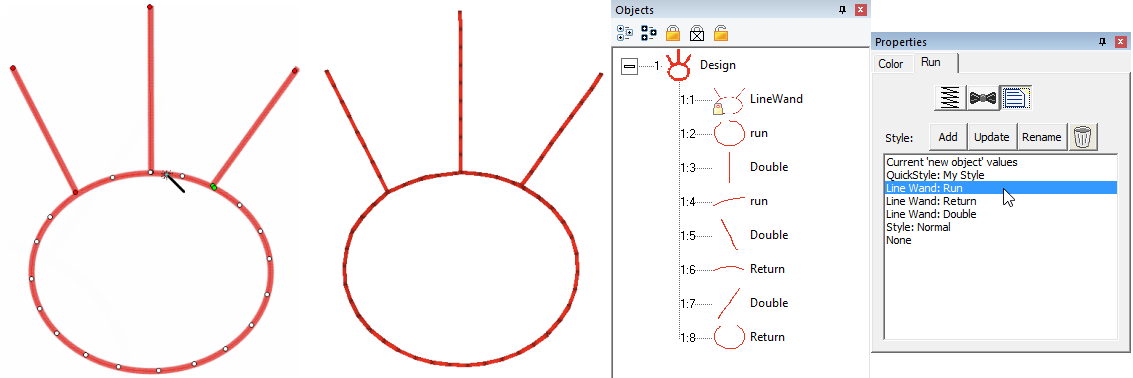
To further explain; let’s examine a simple ‘T’ shape that might represent any ordinary outline drawing. The Line Wand will find a starting point, run to the ‘T’. Now it has to go both directions in order to sew the entire shape. To do this, it will run out on one side first. Then run back. This process repeats for the second side. Now that this part of the path is complete, it can return to where it started. In this way, the entire design has been stitched over twice.
If you don’t want the entire design branched in this fashion, the objects created are editable – you can do what you like. Also, the objects have styles named for what they are doing within the path. By changing objects labeled ‘Run’ you are changing the run out – not anything with topstitches. Change the ‘Double’ for branches that are open-ended – they run out and back. Change the ‘Return’ for topstitching as the stitching comes back over itself.
Some bitmap images will be like an old black-and-white television image, and we call those grayscale. When you load a grayscale image, the chances are good that the image will have lines that look nice and clean, but are really all sorts of gray variations, like a pencil drawing. Grayscale images are fine to work over, but if you plan to use a magic wand line input you may want to save the image as a Black and White (1-bit) image, if you have an image-editing program such as Paint.
Basic cut/copy/paste operations are supported, and there are some additions you’ll want to know about especially for sequencing the design, as we’ll discuss shortly.
When you cut, you are removing items from the design page. Pasting them puts them back, and keeps a copy in memory so you can paste multiple times, even on multiple design pages.
As we have discussed, there are Designs, and there are Objects. Designs contain objects, so when you cut, copy or paste a design, you are doing it to an entire design including all the objects within it. Pasting a design will place it at the end of the sequence on the design page (visually at the bottom of the Object View list.)
Pasting objects will place them at the bottom of the last design in the sequence, unless you immediately precede the paste with a menu->Create->Design->Set Current Design.
When you cut or copy something for a paste, its location on the design page is stored with it. When you paste, either on the same page or another, that location is used for the paste – it will paste in the same place. However, if you have a new location in view, say you are zoomed to a new area of work, and the original location is not visible, the center of the current view is where the paste will occur. This helps minimize the amount of moving-around of pasted items you will need to perform. Simply zoom in comfortably to the location where you would like the items pasted, and Paste (or ‘Ctrl-v’).
You can decide where to paste objects by selecting a ‘target’ object, and then right-clicking on it in the Main View. You will have the option to ‘Paste Under’, ‘Paste Over’ or ‘Paste Replace’.
Pasting Under will paste the cut/copied items before the first selected item in the sequence (the pasted items will sew first). Pasting After will add them after the last selected item in the sequence.
Paste replace is a special feature. If you have a design element that’s being used repeatedly, you may have pasted it into multiple places. But what happens if you later discover that you need to edit that element? Perhaps the stitching needed to be changed, or a connective run was missing from the original. You can fix this by copying the revised element, then selecting an item it is to replace, and Paste Replace will remove the item selected and replace it with the copied one. It will be centered where the original was, and it will be in the sequence in the same place as the original item.
This is also useful for placeholders while you are creating. Suppose you know you’ll need a flower, “Here, there and there.” You can simply insert an object to mark the locations of those, and Paste Replace them later.
An especially useful feature to help with this is ‘Grouping.’ If the element contains multiple objects, group them using the Edit menu or ‘Ctrl-G’. When pasting the first time, paste the grouped objects. Later, when you perform a ‘Paste Replace’, you will first select the destination group by clicking on it in the Main View and perform the ‘Paste Replace.’ This selects the entire group and will remove that entire group when you Paste Replace.
Objects can be grouped so that when you select one in the Main View, all will be selected together for operations such as Move, Rotate, Mirror, Cut/Copy/Paste, etc.
Use the Edit menu->Group or ‘Ctrl-g’ for this.
Note: When items are grouped, they are still individually selectable in the Object View, and can be edited singly if selected.
If you have a design selected when grouping is performed, the design is part of the group. This means sequencing and copy/paste operations will be done at the design level. If you want all the objects from a design, but not the design itself, make sure to check the Object View to see that the design is not selected.
The Edit menu->Ungroup (Ctrl-u) can be used to ungroup objects.
You can group selections that contain sub-groups. Ungrouping will not ungroup the sub-groups – those will have to be ungrouped with a separate ungroup command.
The sewing order of the design is very important. You don’t want your design to sew randomly all over the fabric. It will leave jumps, or have increased trims, or worse, increased color changes, and if you sell designs, your customers won’t be happy.
There are ‘best practices’ for sequencing on different embroidered goods, most notably hats. If you’re creating a design for a hat, you’ll want to attempt to sew from the center outward. This helps keep the fabric in place and flat in the hat frame.
For regular designs, it can often be useful to have stitching work the edges of the design first, in effect anchoring the stabilizer, then work from the center out.
Think about how you would like the design to sew. You’ve probably watched hundreds of designs stitching out, and you can use that experience to help you decide what to sew in what order. Things that connect are pretty easy to figure out – you want them to sew without jump stitches, usually. If you are new to embroidery, we recommend you spend some time embroidering so you can get used to the stitching process. If you can look at a complete design, figure out what object types were used to make it, and predict which objects will sew in what order, then you are ready to take on sequencing.
Work on the sequence on a per color basis. There is always a trim when the machine goes to the next color, so imagine your machine working one color at a time. And yes, there are times when it is necessary and even a good idea to revisit a color – you don’t have to put all your colored objects together. Layering and Shading are good reasons to separate a color into sections with different colors in between.
Once you have a sequence in your mind, you’ll need to adjust the objects to match. And for that, you’ll need to know how to change the sequence your design.
The Object View shows you the sequence of your objects in the design. You may have a lot of objects for a complex design, and that’s normal. If the design can be broken down into separate designs themselves it may be helpful. For instance if you have a picture of a flower and a butterfly, you might make them separate designs on the page, and create them separately.
When you right-click on an object in the Object View, you get a pop-up menu which lets you move designs in the sequence. This is often handy for simple or small moves.
You can also select objects in the Object view and drag them to new positions in the sequence. The items being moved will go into position immediately after the item you release the drag upon.
Remember that designs operate at the root level of the Object View. If you move a design into the middle of another design, you will get three designs – the first, up to the point where you pasted, the one you pasted, and then finally the rest of whatever the first design contained.
If you have a Design selected, and not just objects, the Design itself will move. If you wish to move objects only, make sure you do not have the Design selected.
You can drag all the items out of a design, leaving an empty design. If this happens, you can select the design in the Object View and delete it using the Delete key or the Edit menu ‘Delete’.
When items are locked or hidden, they are always still selectable in the Object View, so be aware of inadvertently selecting locked objects.
A simple and effective method of sequencing is Cut and Paste. You can Cut any selected objects and Paste them at the end of the sequence, or before or after any other object.
The normal Paste (Ctrl-v key) will paste the objects at the end of the design.
Using this method, you could drag or click-select objects, cut, paste, and move on. You are sequencing the design by the order of your cut/paste operation.
Sometimes you have made a design, perhaps with a lot of copy/paste operations, and you wind up with objects of different colors out of sequence. You may want to sequence them by color before adjusting the sequence further. To accomplish this quickly, select the objects and use the menu Create->Auto Seq. by Color.
A fast way to get objects sequenced (although not a perfect method) is to automatically sequence them. This requires that you first decide on what you want to sew first, and what you want to sew last in a set of objects. Manually sequence those two objects so they are the first and last in that whole set of objects. This gives the program something to use as a starting point.
Next, select the set of objects, including the first and last. Use the menu Create->Auto Sequence. To select the set, you could drag around them in the Main view, or Ctrl-click them in the Main view, or click the first one in the Object Tree, and shift-click on the last one in the Object view. See the Object view section of the program help for more ways to select.
The program attempts to minimize the travel among objects so that connective runs or jumps are shorter or eliminated. This form of sequencing is not as good as what your brain can do, with a little thought, but it is a reasonable approximation, and sometimes a helpful starting point for your manual sequencing process.
Similar to the Cut/Paste sequencing method, you have the option to perform the same thing with single clicks. The Sequence Mode button on the Tool Pane begins this mode. Click on an object. That object and anything grouped with it will be moved to the tail of the design. Click on the next object and the same thing will happen. Thus if you click on all the objects, starting with the one you want to sew first, and ending with the one you want to sew last, you will have sequenced the entire design.
To exit the mode, click the button again or use the ‘Escape’ key.
You do not need to sequence the entire design – you can sequence the parts you want. Then if needed, select what you have sequenced, cut the objects, select a target object and perform a ‘Paste Before’ or ‘Paste After.’
If you have imported artwork as a vector file, that artwork is flagged by the program as ‘newly imported art’. With this art, the program assumes the sequence is not designed to sew.
As you assign stitches to objects, the program will begin sequencing the objects to the end of the design. The purpose of this is to allow you to perform both jobs simultaneously; assigning stitches and creating the sequence that the objects will be sewn.
If you do not want this to happen on the imported file’s objects, simply select it in its entirety and click ‘Line’. This has the effect of clearing the ‘newly imported’ state.
Ties are stitches that form knots in the embroidery both allowing for trims and to pull up the bobbin thread when stitching has just begun. We refer to these as entry ties and exit ties, but some may call describe it as “tying in” and “tying out.”
In each object property page you are given the opportunity to explicitly set ties. Click the button with the bow tie icon on it.
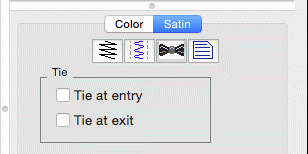
The ties are automatic and basically look in the direction of stitching to find an innocuous angle, then stroke a few stitches forward and back – enough to bind the stitch and bring up the bobbin thread. For most items, even if a tie-in misses a stitch in the case of a stubborn bobbin thread, the underlay will have enough stitches to spare.
You can of course add a few manual stitches, if you choose, with a separate object, but generally the automatic ones work.
Transits are what happen when the embroidery moves from place to place – often between objects. Rather than adding transit properties to each object, the overall design page has transits set in the Program Preferences on the Files tab. When performing commercial embroidery, small movements between objects can have a tightly nested run, which buries the stitches, and no trims are desired because they slow down the process. For home and hobby embroiderers the tie/trim/tie approach seems to be universally approved. To accommodate these differing viewpoints, the preferences “Run when jumps are small” and “Ensure ties surrounding jumps” allow for automatic negotiation of the transits.
“Run when jumps are small” allows for two nested 1.5mm stitches – or a total 4.5 mm between objects before the transit will allow a single whole stitch.
When the stitch exceeds this value, and “Ensure ties surrounding jumps” is set, ties are ensured in both directions, and a trim command is sent out. Some machines have lower limits to the length of a movement before they will trim, often 5mm, but in case the user wants to hand-trim the design, the ties are there to prevent the embroidery from unraveling.
A difference in style: Most hobby embroiderers will trim everywhere they can. However, commercial embroiderers wouldn’t nest the runs if the result was something they got complaints about – they don’t. Only an embroiderer with an eye for it would notice a few nested stitches, usually between lettering. So you might just want to save yourself some effort, and turn the transit options on.
Styles allow for repeated use of properties on a given type of object. There is a QuickStyle button on the top, right of each object property page. When an object has been assigned a style, that style will be highlighted in the style list, shown on the Style properties for the object. If an object was given a style, but then modified from that style, its style name will have an asterisk (*) following the style name.
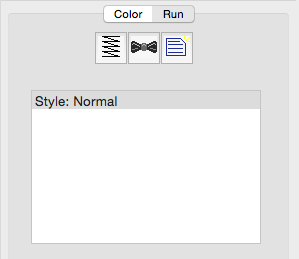
When you begin creating objects having just run the program, the default styles are being used, called “Normal.” These have been tested to be reasonable for all-around conditions, but naturally properties exist for a myriad of reasons.
If you click on the ‘Normal’ style it will reset the object(s) to that style. Keep in mind that all properties will be reset.
 A line is simply a shape.
It has no stitches applied to it. When you bring in vector files, or TrueType
they are lines. As artwork without stitches, they have no properties other than
color.
A line is simply a shape.
It has no stitches applied to it. When you bring in vector files, or TrueType
they are lines. As artwork without stitches, they have no properties other than
color.
 Manual stitches are
straight lines, with the needle dropping at every node. Manual objects are
typically used in the creation of Motifs, but occasionally you may need a manual
stitch for a tie or something really small, where runs will not calculate well –
for example when adding a single stitch to cross a satin column when creating a
Celtic knot as previously described.
Manual stitches are
straight lines, with the needle dropping at every node. Manual objects are
typically used in the creation of Motifs, but occasionally you may need a manual
stitch for a tie or something really small, where runs will not calculate well –
for example when adding a single stitch to cross a satin column when creating a
Celtic knot as previously described.
To protect the user from resizing the design and obtaining a very large stitch, manual stitches have a property that limits the maximum length of an individual stitch.
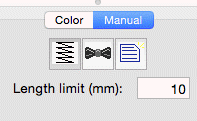
 Run stitches are the
heart of any design. You could, with patience, create virtually any design with
run stitches. There are a lot of variations to them as well.
Run stitches are the
heart of any design. You could, with patience, create virtually any design with
run stitches. There are a lot of variations to them as well.
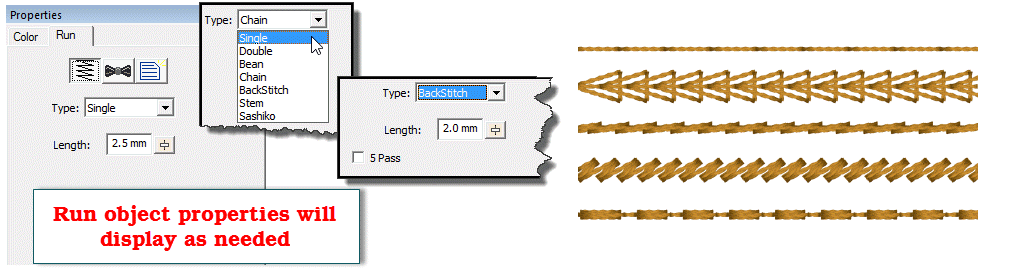
A basic single run is how your stitches travel from one point to another. The run has a length for each step. With curves, however, the stitch length may shorten when needed to go around a tight turn. This is described as “chord gapping” in math parlance. It creates a run that is more faithful to the shape.
When runs encounter curved nodes on the path they are following, they do not need to cause a needle penetration, but with cusps and straight lines, they do, otherwise the stitches would not match the outline. So if you see a needle penetration that makes the stitches look uneven in length in your run, go back and check for an inadvertent line or cusp point.
A double run is one that makes its path like a single run, but then reverses its steps to return to the starting point. For this reason, when you switch a single run to a double, the Exit point will be reset to match the starting point for you automatically.
A Bean stitch is like a traditional sewing machine’s triple-stitch. The needle makes two steps forward, and one back. This provides a heavier stitch that stands out better against a pile fabric. The bean stitch also has an option to repeat the stitch (in place) up to 9 times, which can make a heavy hand-sewn look. If you use this option, we recommend a longer stitch length so that the fabric/stabilizer can support the tension created by that many stitches.
The chain stitch is homage to heirloom hand sewing and forms a pretty effect that looks nice when combined with traditional design, especially floral.
Like the chain stitch, the Back stitch and Stem stitch are also traditional heirloom stitches. As you select these stitches, you will see properties appear for them.
The Sashiko stitch attempts to emulate the Japanese hand sewing look. The word Sashiko translates to “Little Stabs” and describes the short interval between stitches. To accomplish the look, this run creates a small step forward, followed by a multiple-pass stitch that is a little bit thicker. At arm’s length, the effect is rewarding. Used in the traditional colors of white thread on indigo fabric, the stitches resemble grains of rice laid end-to-end.

Motif runs use patterns of stitching along a path, much like the decorative stitches of a sewing machine.
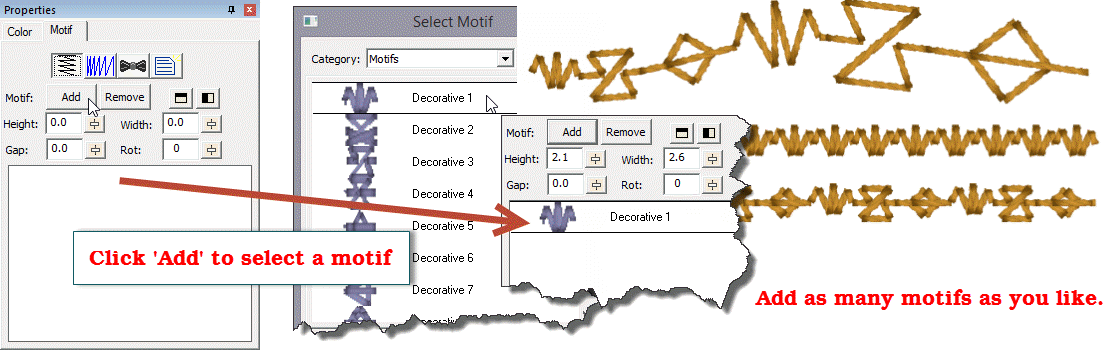
When you initially set an object to a Motif run, it will only have normal run stitches in it. You will need to add a motif to the run. Click the ‘Add’ button and the Motif Selection window appears.
Once you have selected a motif, for the run, the run will re-generate with the motif. The motif will also appear in the list box in the bottom of the property page. You can add as many motifs as you like, and they will be added to the sequence in the order that you add them. Each motif has its own properties that you can adjust. Select the motif in the list to adjust its properties. You can remove a selected motif with the ‘Remove’ button, next to ‘Add’.
 The height, width and
rotation of the motif are set as their name implies. The mirror buttons will
flip the motif in the sequence. You might want to have two copies of a motif
‘facing each other’. This can be done by adding the motif twice to the list, and
then flipping one. The ‘Gap’ of the motif indicates that some amount of space
should precede the motif, after the previous one.
The height, width and
rotation of the motif are set as their name implies. The mirror buttons will
flip the motif in the sequence. You might want to have two copies of a motif
‘facing each other’. This can be done by adding the motif twice to the list, and
then flipping one. The ‘Gap’ of the motif indicates that some amount of space
should precede the motif, after the previous one.
The Motif Scaling button allows you to incrementally adjust the size of each motif in the run. This makes for a decorative effect. If you increase the size, start with the motifs all at a regular or small size in the Height and Width fields. Then you can add a few percent of size for each pattern that is displayed. If you want to create your run with motifs decreasing in size, start with the motifs’ height and width as large as you will want, and decrease will make each successive pattern smaller. This may take some trial and error to get the result, but the effort is worth it, especially if you want to run ‘center-out’ and have motif run scaling in both directions.
 The satin border is one
of the most versatile and easy-to-use stitch types. The shape is a simply line,
with no need to worry about inclinations. The border follows the outline and has
a width, much like a sewing machine. As a satin stitch, however, there are
numerous properties available for the satin border.
The satin border is one
of the most versatile and easy-to-use stitch types. The shape is a simply line,
with no need to worry about inclinations. The border follows the outline and has
a width, much like a sewing machine. As a satin stitch, however, there are
numerous properties available for the satin border.
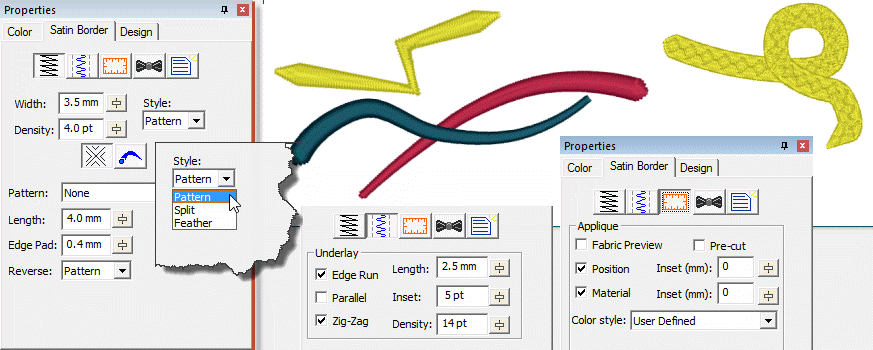
At the top of the property page there are separate buttons to show the top stitching, underlay and applique properties. The top stitching is composed of the width and density of the stitch, along with any variation in the stitch width which gives a simple way for a satin border to approximate a column, but without inclinations.
The Style of the border topstitch will have a smooth satin or pattern, a split satin which divides itself into columns, or a feathered-edge stitch.
You can also adjust the line and nib style for open path outlines. The line style varies the width over the length of the outline in a manner according to the image displayed in the list box.
The nib is the shape of the endpoint. You can use the normal squared-off satin end, or add a curved or tapered tip to either end for a more finished look without the use of a column.
The border can have applique steps added to it, very much like the normal Applique object type, the difference being that when using the satin border type you have much more control of the topstitch itself.
Please see the Satin Column section for information about the patterns and underlay.
Tip: When using a wide border, use a split (value of 2) with no reverse pattern to help prevent the stitches from looping, while still maintaining the look of a satin.
 Satin columns are
versatile objects, and this property page allows you to use the column in a few
styles. “Normal” satin stitches are what you almost always think of with satins;
they go left-to-right and back again, making a smooth, narrow, continuous
stitch. But you also have the option for Contour and Fringe stitching styles
available.
Satin columns are
versatile objects, and this property page allows you to use the column in a few
styles. “Normal” satin stitches are what you almost always think of with satins;
they go left-to-right and back again, making a smooth, narrow, continuous
stitch. But you also have the option for Contour and Fringe stitching styles
available.
Satin columns are one of the most-used stitches, and they have a lot of properties available. The most important of which is the density. Remember that density is measured in stitch points, which are tenths of a millimeter. The bigger the distance, the lower the density. Normal density for satin columns is 4 points to 5 points unless a fine thread and tightly woven fabric are used. Often, the 5 point density is preferred as it will not push the fabric around as much, and still provides nice coverage.
When choosing the patterned topstitch, a normal smooth satin is the default, however you can adjust the patter to appear like a fill pattern that curves with the stitching. Each pattern can have its stitch properties adjusted. Stitch Length in the pattern relates to the size of the pattern that is made. If you make your pattern too wide, it will not be visible unless the satin itself is very wide. Here you can see how a satin pattern will turn with the stitching:
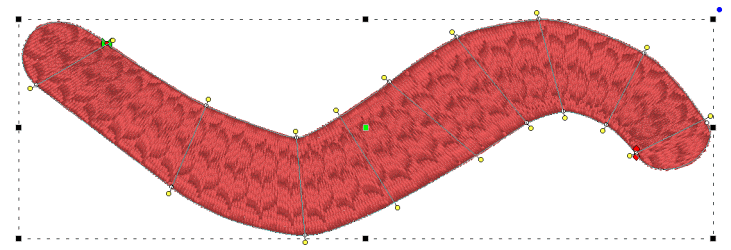
The Edge Pad is a means of protecting the edges of the stitches from have excessive needle penetrations which can pull on the fabric and pucker.
When patterning, the needle penetrations can lie next to one another causing the fabric to lash or even cut. If this is a danger for the fabric being embroidered, set the “Reverse” to “None” which means the pattern will only occur on every other stroke of the satin. The pattern effect will be lighter, but the embroidery will be better and the fabric will not have as many cuts.
The pattern of the satin also has compensation and gradient properties. Please refer to the Fill Pattern section of Fill Objects for images and further description.
Feathering the edges of satin columns is a good way to simulate animal fur. Overlap multiple layers to make a more realistic appearance. In this example, three satin rings were set with feathered edges. The rings sewed outer-to-inner, and overlap slightly.
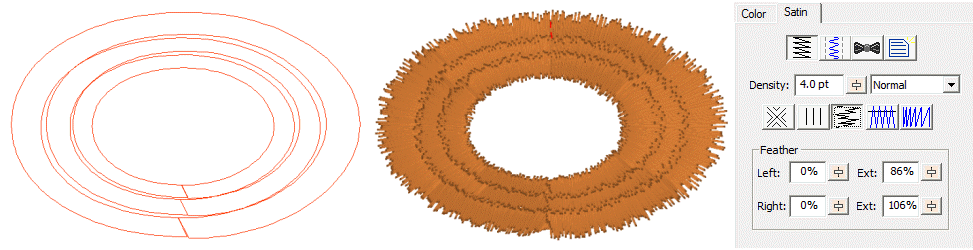
A split stitch in the column simply means that the needle will land in rows, lengthwise along the column. You can set the number of split columns, the minimal stitch value (to avoid fabric cuts) and you can avoid the reverse stitch pattern, which helps preserve the look of the satin column. Here is a column split into three:
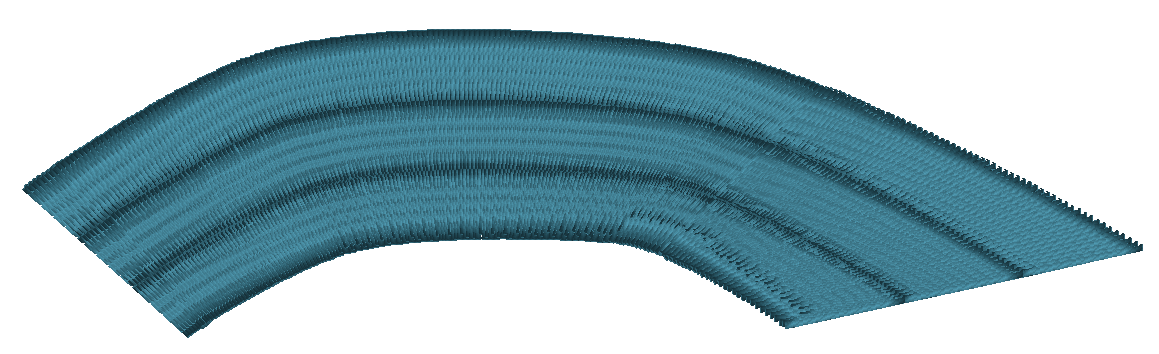
 Satin stitches are good
at covering the fabric, but they have challenges, especially along the edge,
where tightly placed dense stitches can penetrate the same hole in the fabric or
even cut the fabric. You may have sewn, for example a knit shirt, and had the
edges of satin stitches create holes in the fabric. For this reason a parallel
or zigzag underlay is often used. It provides coverage while pulling the fabric
at slightly different angles and that can allow the top stitching to have
reduced density.
Satin stitches are good
at covering the fabric, but they have challenges, especially along the edge,
where tightly placed dense stitches can penetrate the same hole in the fabric or
even cut the fabric. You may have sewn, for example a knit shirt, and had the
edges of satin stitches create holes in the fabric. For this reason a parallel
or zigzag underlay is often used. It provides coverage while pulling the fabric
at slightly different angles and that can allow the top stitching to have
reduced density.
Satin also has the issue of tension. Short stitches in the same direction, laid next to each other, builds up stress in the fabric, gathering it in toward the middle of the satin stitch. This can cause registration issues with subsequent stitching. This can be managed by binding the stabilizer to the middle of the satin with a center run, or a pair of edge runs which travel just inside the shape. The edge runs also have the added benefit of lifting the edges of the satin up, out of the pile of the fabric. For these reasons it is not uncommon to use a medium density satin with a lot of underlay.
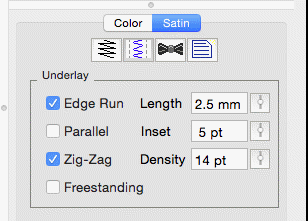
In the underlay properties, the “Edge Run” will create runs on either side of the satin, just inset by an amount controlled by the Inset field on the property page. The inset for the edge run is usually is set to fall just inside the stitching – perhaps a half-needle with or slightly more, which allows some relief around tight corners. The stitch length of the edge run is also adjustable; use smaller stitches for tight, narrow columns and longer ones if you want to reduce the stitch count, or are worried about cutting the fabric. The default is usually sufficient though.
The density of the parallel and zigzag underlay is adjustable for increased coverage. Sometimes it is better to have a higher density underlay (0.8 – 1.2mm) and a lower density top stitch (0.8mm) so that the coverage is solid, but the pull on the fabric is reduced, which helps with registration issues (eliminating gaps between stitched areas).
The ‘Freestanding’ underlay creates a mesh under the satin, similar to the freestanding background object type. This is useful when making Richelieu bars or satin shapes that will be stitched on wash-away stabilizer. When using the ‘Freestanding’ option, you do not need the other options, so you can leave them off. The Length, Inset and Density properties do not apply to the ‘Freestanding’ option.
Checking the ‘Contour’ button on a Satin Column will arrange the stitches to run opposite to the inclinations, rather than parallel to them. The density is maintained throughout the column, even if the column widens and narrows, as the program will automatically adjust the number of rows as the width changes. Contour 2 will provide more of a ‘fill’ effect as areas widen and narrow, whereas Contour will have varied density across the shape as it widens.
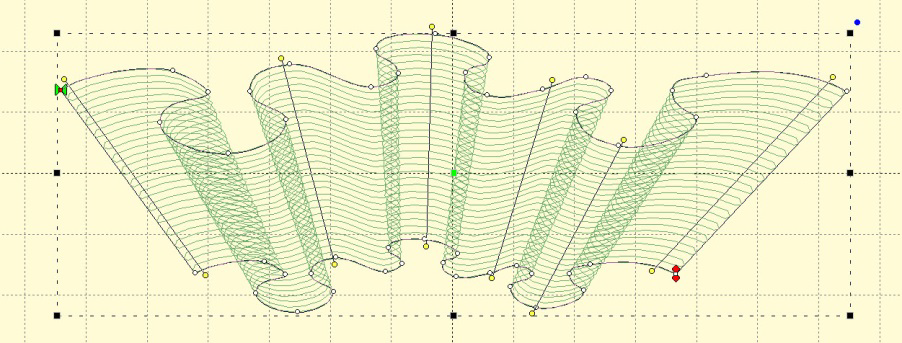
The Fringe stitch is a unique stitch that allows you to create what some call “3D Embroidery” by cutting the bobbin threads under the satin, which frees up one side of the stitching to come up and away from the fabric.
This Fringe stitch lays a run down along the edge of the satin first, and then places the satin over top with extra needle penetrations causing the satin to anchor itself to the run. It finishes off with a top stitch run to anchor it all together. This method allows you to have fringe effects in embroidery without the need to anchor the stitching down with a fill, as has always been the case.
Now that we have covered outline basics, it’s time to discuss Satin Columns. Satin Columns have stitches that go across the shape from left to right forming a smooth, possibly curving, filled area. Satin columns are also referred to as “Turning angle fills” sometimes. Satins are generally the second most important stitch type you will use, after Runs.
Because we tend to think of satins as going ‘left-to-right’ or ‘side-to-side’ there are special input methods for them accommodate this.
Satin columns are special because in addition to the shape itself, you’ll need to add incline lines to get the column of stitches to curve nicely. The incline lines are the direction the stitches will lay on the fabric.
 Before we can discuss the
input methods of satin columns, we need to go over incline lines.
Before we can discuss the
input methods of satin columns, we need to go over incline lines.
When you have a shape drawn that will be a Satin Column, you will need one or more incline lines, also called, “Inclinations.” When you first draw the shape, the program attempts to provide a satin stitch automatically, based on the shape. If this is acceptable, you can skip adding your own.
The incline lines input can be started using the ‘i’ key or the Inclines button on the Tool Pane. To add an incline line, simply begin on one side of the shape by clicking down, and then drag the mouse across the shape to the other side. When you release the mouse button you will have added an inclination line to the shape. You can repeat this drag operation to make as many incline lines as the shape requires. When you are finished, simply right click to exit the mode.
How many incline lines do you need? That is a great question, and like a haircut the answer lies in the form of a question, “How does it look?” Simple lines of satin stitching might only need one or two inclines. But if you curve around, you’ll need one whenever you make a quarter-circle, or whenever you want to switch from turning left-to-right or vice-versa.
Generally, start with a pair of inclines at the ends, and at least one in the middle. As you add inclines, you will see the stitches change. You can stop anytime you are happy.
If you make a mistake, you can exit the Inclines mode, and then simply drag the endpoints of your inclines around. You can also drag one of the points to the opposite side to remove the incline. You can also go back and add, remove or move the inclination lines at any time, which is handy if you decide you need to edit the shape later.
When a shape turns, one side will be longer than the other. This means that one side will have its stitches closer together than the other. Another way to say this is that the density (stitches per inch) inside the turn is higher. When the satin stitch is created, it is given a specific density to maintain – and that is on the outside of the turn, not the inside. The program will do things on your behalf, such as short-stitching, to minimize the impact of the increased density on the inside of turns. But you can also help by looking at what is going on, and making changes to the inclinations so that the density increase is minimized.
Tip: When turning around a tight corner, you might want to begin ‘leaning’ into the turn, which helps the stitches go around with less bunching:
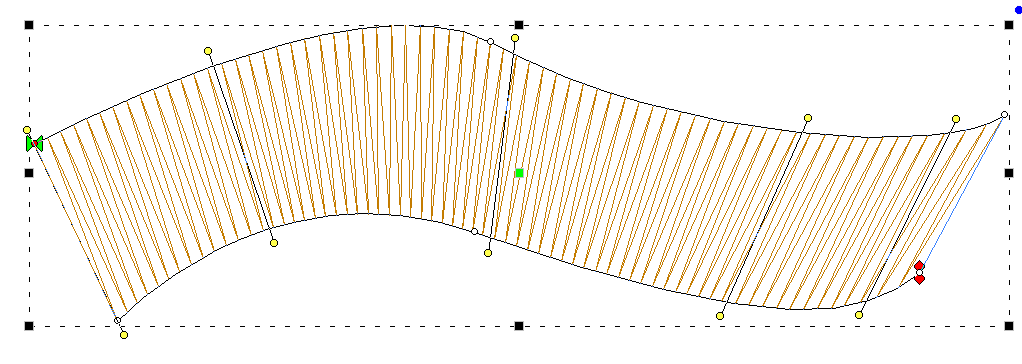
Another issue to look at when adding, or adjusting, inclinations is smoothness of the change in angle. You don’t want your inclinations to be ‘wobbly’:
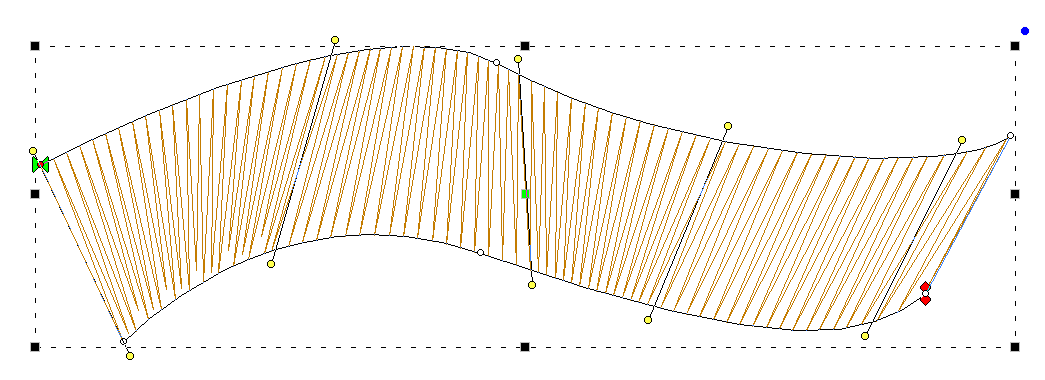
When going ‘around’ a large curve, imagine a center point, and incline as if there were rays radiating from that center point:
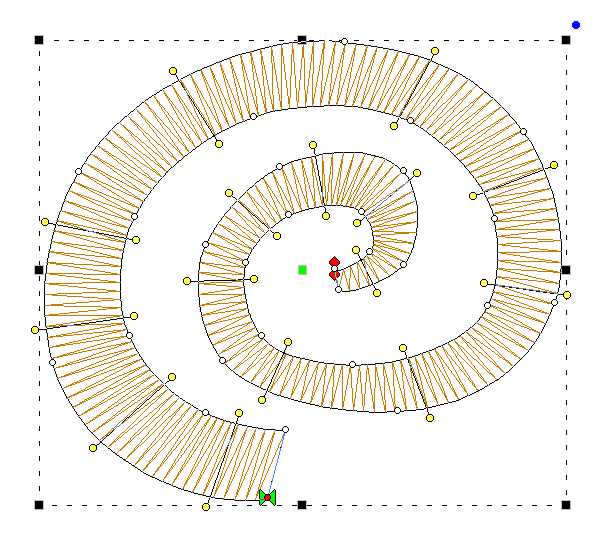
The smoother you change the angle in your satin objects; the smoother the sewn result will appear.
Satin objects are like any other – they have a shape. It is the inclination lines that define that shape as a satin. This has some noteworthy effect on the ‘ends’ of the shape, because, naturally, shapes don’t have ends; people perceive them though.
In the picture below, what do you see?
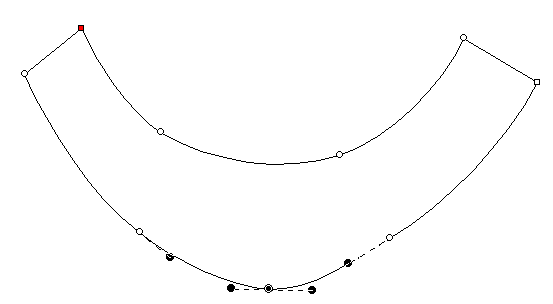
Perhaps a rudimentary smile? And what are the ‘ends’? If we asked a thousand people, they’d all tell you the same thing. The ends are the flat sections, right? Therefore the natural idea is to have inclinations that parallel those lines.
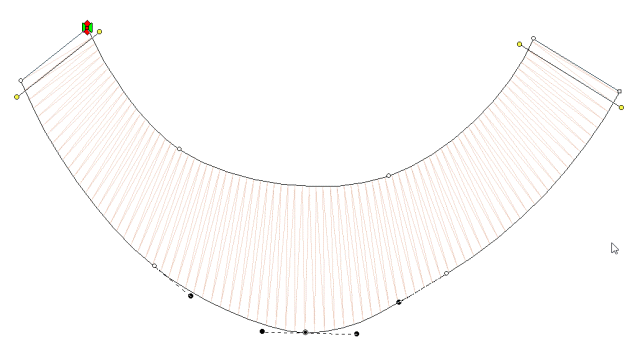
In fact, this is how inclines work, with respect to the shape. Once the last incline is ‘seen’ the program keeps the angle the same, regardless of the shape:

Sometimes you will see stitches ‘diving’ into corners. This is because the shape, past the incline, looks pointed. In this image, the incline on the left is parallel to the points ending the shape, but the incline on the right is not:
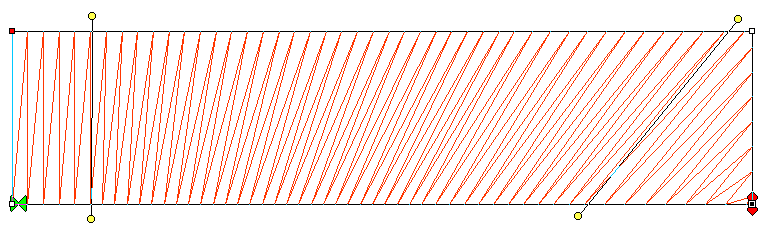
The program will look for two corners, and find them if they make a line that is reasonably parallel with the ending incline. If they’re not found, then the stitches just keep going at their current angle, whatever that may be.
 This method of input uses
the knowledge that the satin stitch will have two ‘sides’, and you draw each one
separately. This method of input is easier for some types of art where it may be
that you want to add the incline lines after the outline has been drawn. To use
this mode, first, select the ‘AB’ input method from the Tool Pane. Then select
an input method that you will use. Generally the Point or Freehand inputs are
chosen.
This method of input uses
the knowledge that the satin stitch will have two ‘sides’, and you draw each one
separately. This method of input is easier for some types of art where it may be
that you want to add the incline lines after the outline has been drawn. To use
this mode, first, select the ‘AB’ input method from the Tool Pane. Then select
an input method that you will use. Generally the Point or Freehand inputs are
chosen.
The first side, usually thought of as the ‘left’, is now drawn. Once you get to the end of it, right-click the mouse. Instead of closing the shape, this now starts you drawing the other side. You can draw from the second side’s ‘end’ toward the ‘start’, or go back and make the side going ‘forward’, similar to the way you made the first side. The program will figure out which way you are drawing it.
Once you have drawn each side, right click again. The shape itself will now close and you will be put into the input mode to add Incline lines. Drag the desired incline lines across the shape, and right-click to finally generate the object.
To sum up:
1. Draw side ‘A’. Right-click.
2. Draw side ‘B’. Right-click.
3. Add incline lines. Right-click.
This method of input is useful where the Left/Right method cannot make the shape:
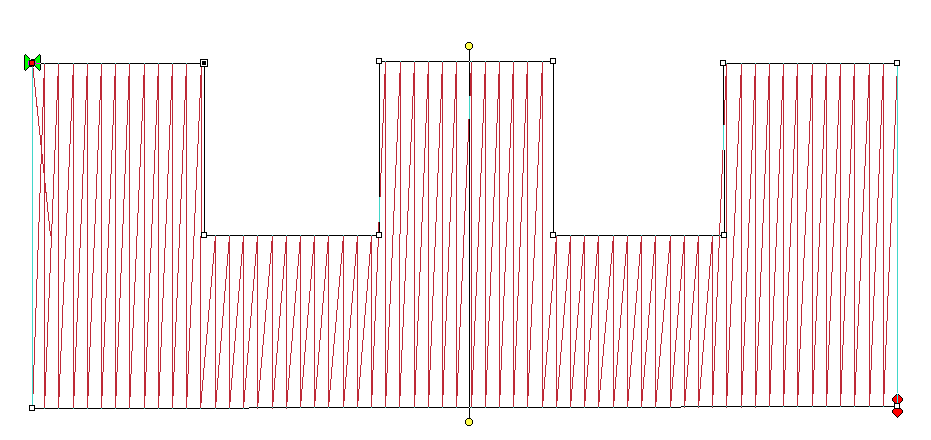
 This method of creating
satin columns creates the shape and the incline lines at the same time.
Selecting this mode also forces you into the Point mode for entry, because the
only way to create alternating points on the sides of the satin is by
clicking.
This method of creating
satin columns creates the shape and the incline lines at the same time.
Selecting this mode also forces you into the Point mode for entry, because the
only way to create alternating points on the sides of the satin is by
clicking.
What you’ll do is create the outline by clicking a point on the ‘left’ side of the satin column, then a point on the ‘right’ side. You keep going, left, right, left, right until you have completed the shape. It will look like you have drawn a ladder.

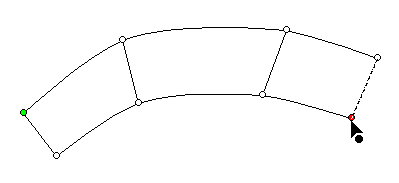
As you make each pair of left and right points, you are not only defining the shape of the column, but also adding incline lines across each pair of points at the same time.
As with Point Input mode, you can create curves by left-clicking, lines by ctrl-left-clicking and cusps by shift-left-clicking.
When your shape is complete, right-click to end the input and generate the object. The shape can now be edited if necessary. Note the inclines here can be manipulated as if you drew them individually. There is no difference in this style of input from any other, other than how it is drawn. One benefit though is that the inclines at the ends will line up to make a straight edge which goes all the way across the shape.
When entering a curve, as you click along try to imagine the curve as going around a center – as you click, each pair of points should point toward that center.
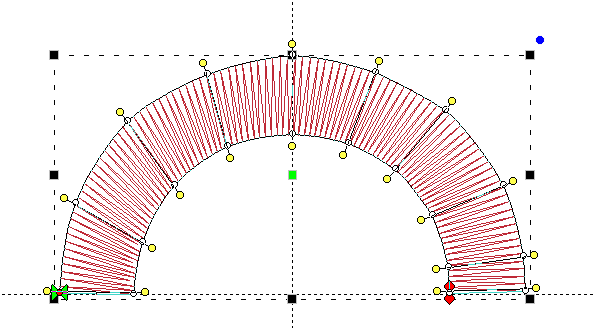
Creating corners with satin columns is a bit of an art. When creating lettering for example, the cornering methods you use will radically affect how the viewer of the stitched item perceives your embroidery.
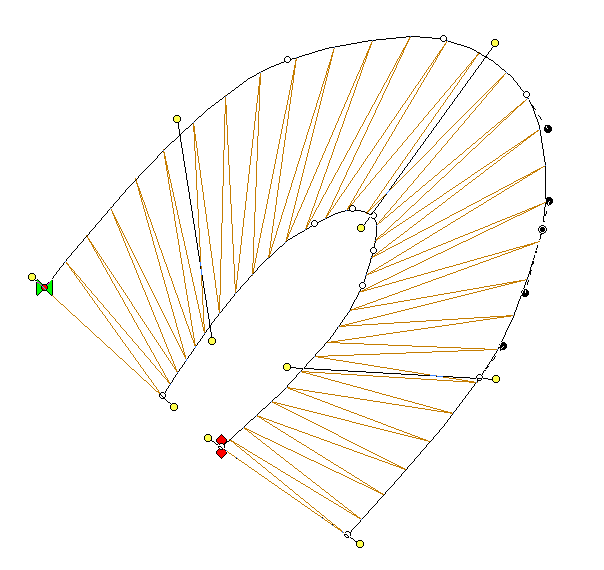 The simplest form of
cornering is to simply turn, with inclinations going around the turn. When
making a hard corner, this results in stitches pivoting around the inside corner
of the turn. If you’re going to turn this way, try beginning to ‘lean’ the
stitches into the turn, and when coming out of the corner, give them some chance
to ‘lean back up.’
The simplest form of
cornering is to simply turn, with inclinations going around the turn. When
making a hard corner, this results in stitches pivoting around the inside corner
of the turn. If you’re going to turn this way, try beginning to ‘lean’ the
stitches into the turn, and when coming out of the corner, give them some chance
to ‘lean back up.’
Surprisingly, most of the time, professionals prefer to simply turn corners instead of using more complex corner styles, which we’ll describe next.
Letters often look better with a set of satin columns, rather than turning around hard angles. One method commonly used is with three satin columns: and entry, and end ‘cap’, and the exit stroke. A typical example is this letter ‘A’:
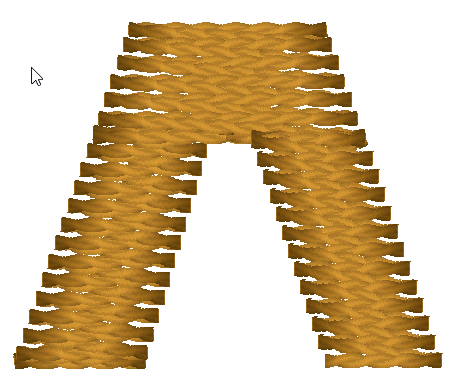
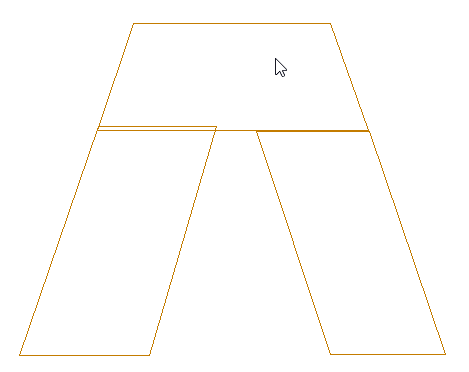
You’ll see that the cap angle is as ‘flat’ as it can be so that the stitching is smooth. For registration purposes, you may want to overlap the cap on top of the entry column. And the exiting column usually is best to be snug against the cap. In the illustration on the left, notice the slight overlap of the left column and the cap – barely a stitch is typical.
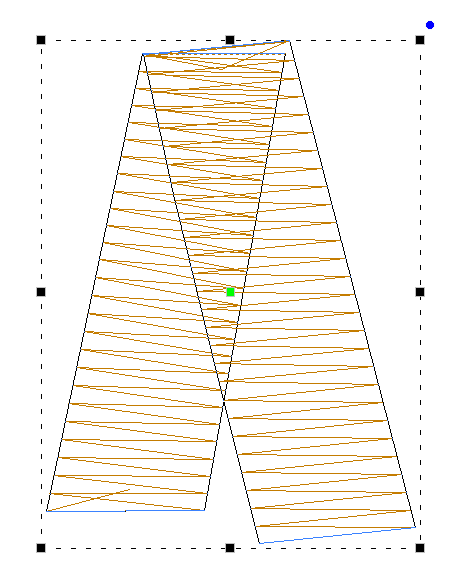
A hard corner may not be appropriate for a cap. And it may be so tight that it cannot turn reasonably. In this case, break the column into two and overlap the corner. Don’t worry about the stitches overlapping each other, as satin stitches sew quite well even when overlapped. If the density is not too tight for the thread and fabric, you can even get a blended look.
Mitering is a form of overlapping where the exiting column starts at a ‘point’ and widens out as it leaves the corner. This makes the stitching resemble a picture frame:
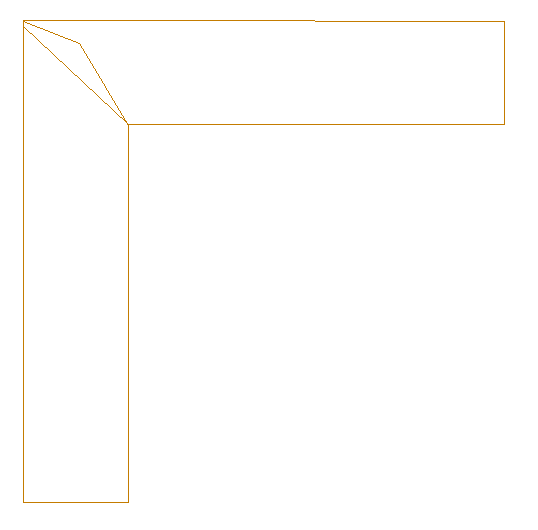
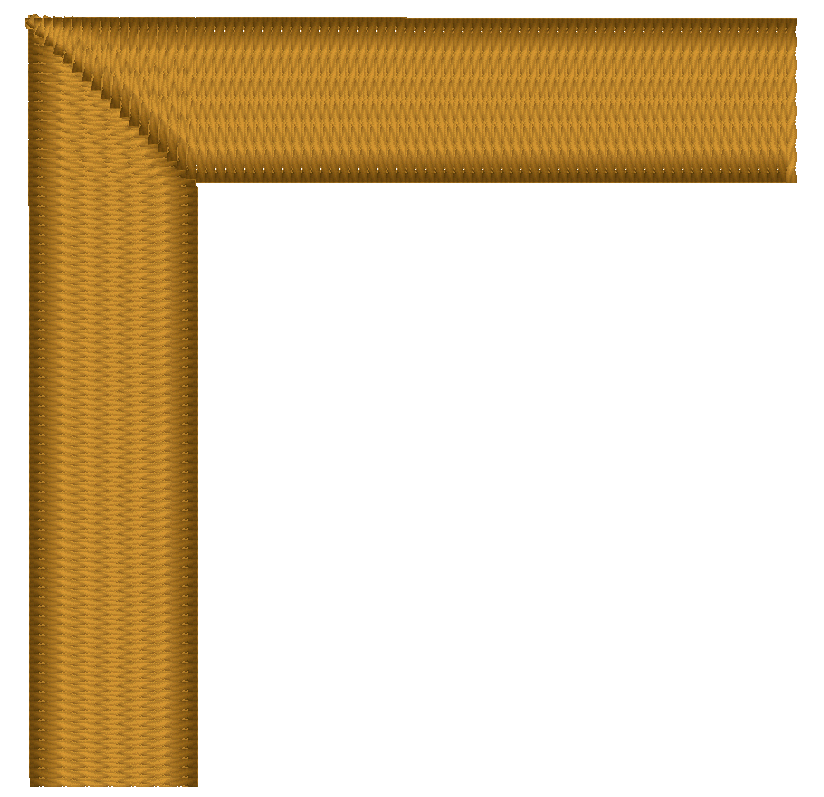
Mitered corners work well for corner angles at 90 degrees, like a picture frame. Hard turns cause longer miters, which have too many small stitches, and shallow turns do not need mitering.
You will probably be creating lettering at some point, which constantly joins satin columns. But many other design types require this as well.
When columns meet up at nearly right angles, there can be a gap that forms as the fabric is being ‘parted’ in two opposing directions. Sometimes you can overcome this by stretching the later object so that it comes slightly over the earlier object. When doing this, you only need a few stitch points of overlap. As the stitch forms on top of the earlier column, the stitch will ride down and seat quite well, filling the gap.
Sometimes you have meeting columns which have low enough density that there will be something of the fabric visible. If you need to completely cover the fabric, insert a set of stitches as a separate object as a form of underlay. Usually you will do this with the same angle as the early column will stitch. This acts to bind the fabric down and provide the color needed when the columns intersect.
As in the case of a letter ‘k’, sometimes satins will come together at acute angles. You might have the impulse to attempt to turn the joining column. Sometimes this will work, but there is another way: Simply keep the angle constant, and overlap the joint. The ideal situation is where you have the acute angle column being sewn before the straight one. This allows for easy (and greater depth) or overlap.
Where the part that is coming in at a steep angle will be sewn later, the joint is more difficult, but works the same. You simply have to be careful about your shape. Sometimes this is the case where turning the angle near the end can be helpful for a smooth joint.
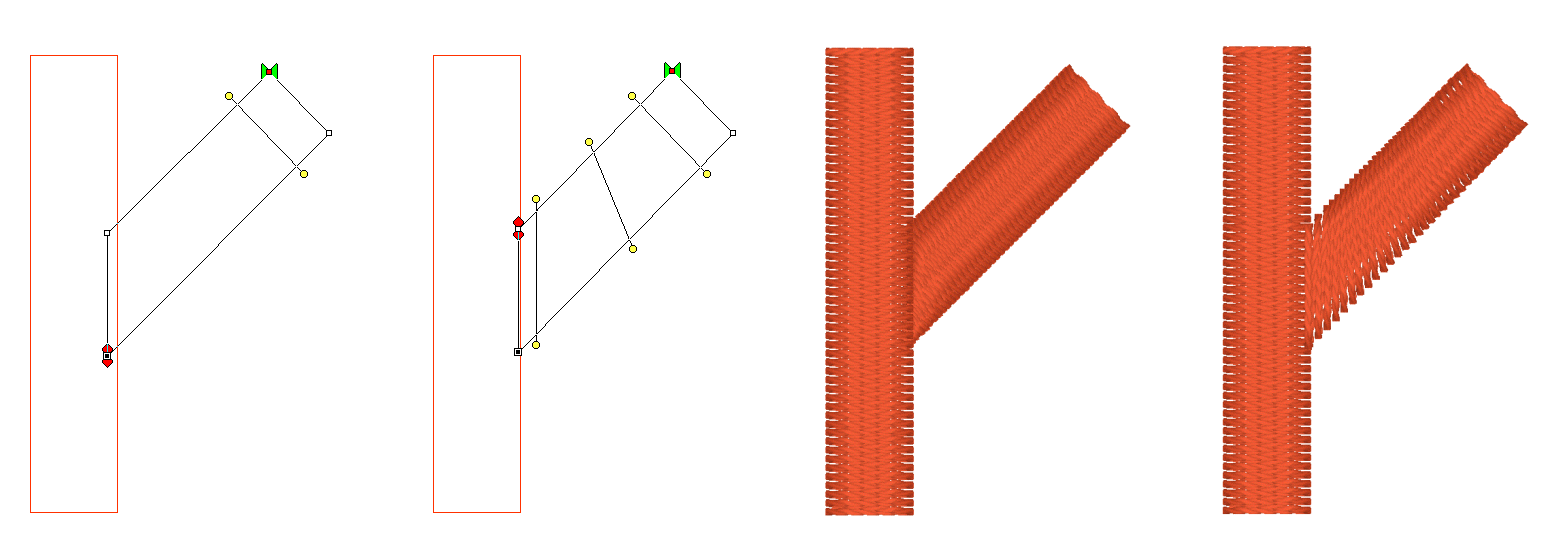
As with right angles, the use of an underlay object can provide better coverage, and make the joint easier to accomplish.
When creating a shape like a simple letter ‘T’ you can do it with two objects. Assume the vertical stroke comes first for this example. Let the Exit point of the stroke occur naturally – at the top, on one side or the other. Then, make the horizontal top column. Set the Entry point of the top column to match the Exit point of the upward stroke. This allows for continuous sewing. You still may want an underlay object, in addition to the underlay provided by the objects themselves, but the simplicity of the connection is nice to understand. Also, if the design permits it, ending the pattern in the inside of such a corner as where these two strokes meet allows for tie-off stitches to be nested nicely, and in fact they also double as color fill in the intersection. A lot of ‘old school’ embroidery fonts were digitized this way.
Sometimes you have to cross over an earlier stroke. This is a common problem when digitizing a Celtic knot, which has art that goes over-and-under repeatedly. One trick that is used is to have the Exit point of one stroke align with the Entry point of the column that is going to pick up on the other side. This means an exposed connective stitch will go across the ‘Over’ column, but its angle will be similar to the angle of the satin stitches which it is going across, thus it blends in. As long as the stitch will be short, usually under 3mm, you can avoid adding an object for it. Otherwise, simply add a Manual stitch object with two points, and make sure you go the right direction across.
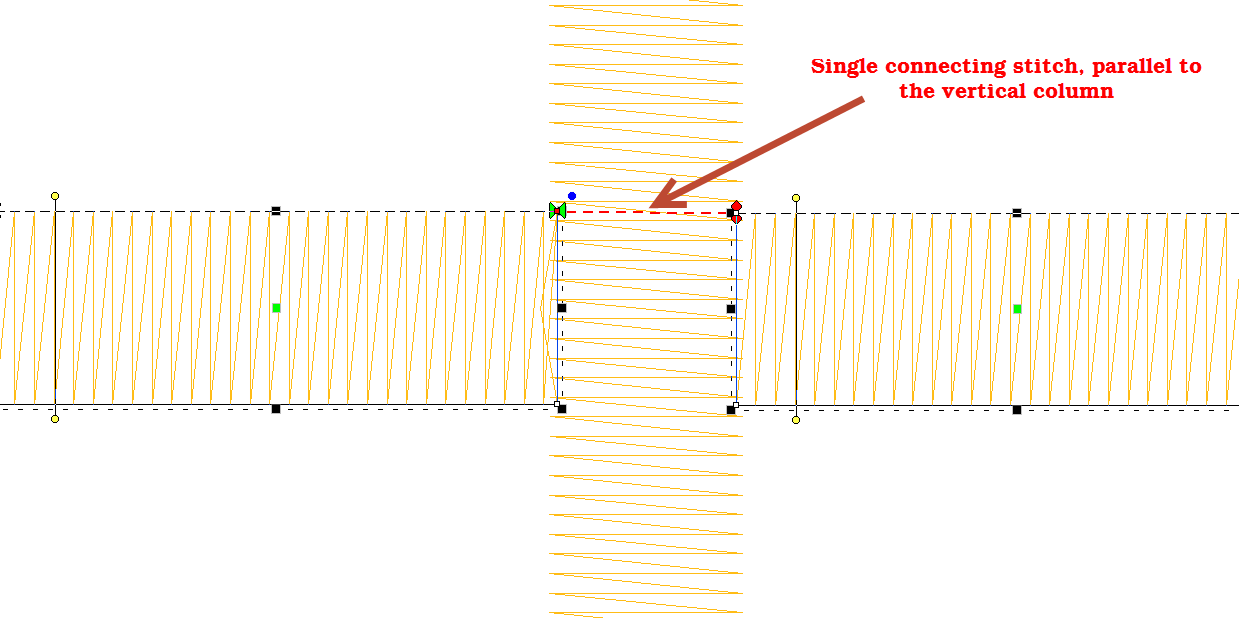
Satin stitching is hard on fabric; it pulls the fabric, it pushes the fabric, the needle comes down so close as to cut it sometimes. Narrow satin stitches are the worst, as the fabric is pulled tightly under the tension of the thread, and the needle comes down in a very dense pattern. Depending on the fabric you are embroidering, a narrow column of stitches (perhaps as wide as 1mm) can be too much stress for the fabric and can cause puckering or gathering. A more generous 1.5mm of travel is preferred. This mean that any ‘points’ in your shape will want to be clipped a bit so that the stitch has a bit of travel. If you are wondering what 1mm looks like, it is slightly wider than the needle you are embroidering with. If you think about it, a needle width isn’t a lot, but giving the extra length of stitch can do quite a bit for the sew-ability of your design.
Sometimes your column will narrow down toward a point, and there is some relief that can be given here with inclinations. If you angle the stitching slightly as it comes into the point, the stitches stay a bit longer, while the column continues to narrow. This effect is known as chiseling, and it is effective.
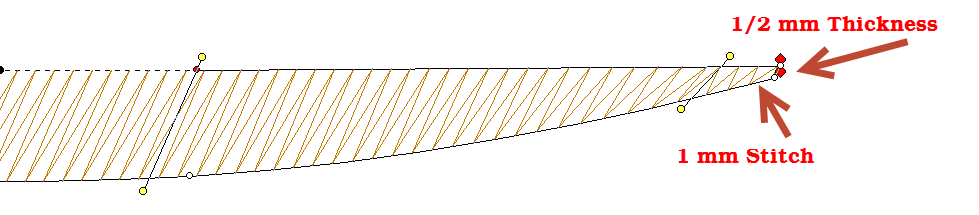
Also, narrow satin columns will appear to be of a higher density when sewn, so you may want to open up the density a bit.
Note: The program will automatically loosen the density as the shape narrows.
Also be aware that narrow satins will not register as well as wider ones against other stitching. When creating a satin border, try widening the stitch a bit and overlapping the adjacent stitches. This will help prevent gaps without requiring additional stabilizer.
 A Fill is a repeated run
stitch back-and-forth in rows, used to cover a large area. There is a lot of
terminology associated with fills, such as “complex” (it can have holes),
“Tatami” or “Ceeded” (The runs are offset so the rows don’t line up), “Edge
Travel” (the stitches run along the edge instead of under the rows), etc.
A Fill is a repeated run
stitch back-and-forth in rows, used to cover a large area. There is a lot of
terminology associated with fills, such as “complex” (it can have holes),
“Tatami” or “Ceeded” (The runs are offset so the rows don’t line up), “Edge
Travel” (the stitches run along the edge instead of under the rows), etc.
The main issue is density, or the distance between rows, and here is where you get to make a decision. When a fill executes, it puts a lot of stitches into the fabric. Those stitches displace the fabric somewhat, just like when you get into a bathtub, the water has got to go somewhere – stitches in fabric are the same. So the more stitches you put into the fabric, the ‘bigger’ the fabric has to become to handle it.
Remember that density is measured in stitch points, which are tenths of a millimeter. The bigger the distance, the lower the density.
In the past, the typical production method was to use a cut-away stabilizer that can hold together with a lot of stitching in it, which relieved the fabric considerably. Then, the designer could use densities of 4 points or even tighter, thus creating “full coverage.” Full coverage means the fabric does not show through. It sounds good and if you’re being paid by the stitch, it is great. But what if you want the fabric relaxed, not stiff as a board? And full coverage isn’t as important as wearability and softness? Then plan on releasing some of the density. Go for 5 point density or even lower.
There are other options too. Using two fills, in different directions, but each with only half the density, you can create a far more stable fill with less displacement. And the coverage works out quite nicely.
If your fill sews out like a soup bowl, indented and firm, you needed less density and more stabilization.
When a fill executes, it does so in sections. This is driven by the shape of the object, and where the Exit point is located. When the fill has to travel between those sections, it can either run under the rows of stitches which haven’t been filled yet, or it can run along the outside edge of the shape.
If the fill is a normal density, even, one of the lighter ones previously discussed, the traveling runs probably will not be visible and certainly not noticeable, so the most efficient thing to do is let the fill travel normally.
There are uses for fills that have much wider spacing between rows; trapunto effects for example. In a fill that has low density – where the stitches are really far apart -- you may want the traveling stitches to go along the outside of the shape, rather than under the rows where they would interfere with the desired visual effect. This is accomplished by checking the ‘Travel edge” box.
A fill has a single angle at which it runs. You can add an inclination using the Incline button on the Tool Pane.
When choosing the patterned topstitch, a normal fill (tatami) is the default, however you can adjust the pattern to have needle lands that form texture. Each pattern can have its stitch properties adjusted. Stitch Length in the pattern relates to the size of the pattern that is made. If you make your pattern too wide, it will not be visible unless the shape itself is wide enough. To make a fill appear smoother you can also add randomness to the needle lands for a Tatami fill.
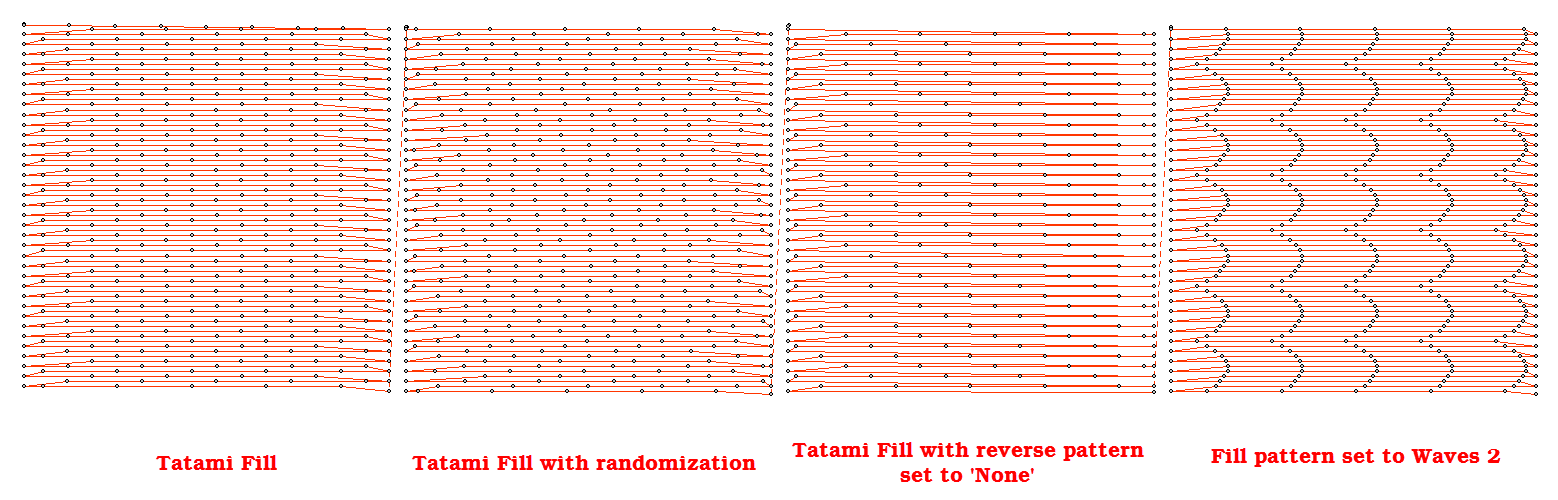
Note: There is also an option of using fill pattern “None” which will emulate a satin. This is for very small areas, where the stitches will not be excessively long, or for fills that are only going to be carved.
The Edge Pad is a means of protecting the edges of the stitches from have excessive needle penetrations which can pull on the fabric and pucker.
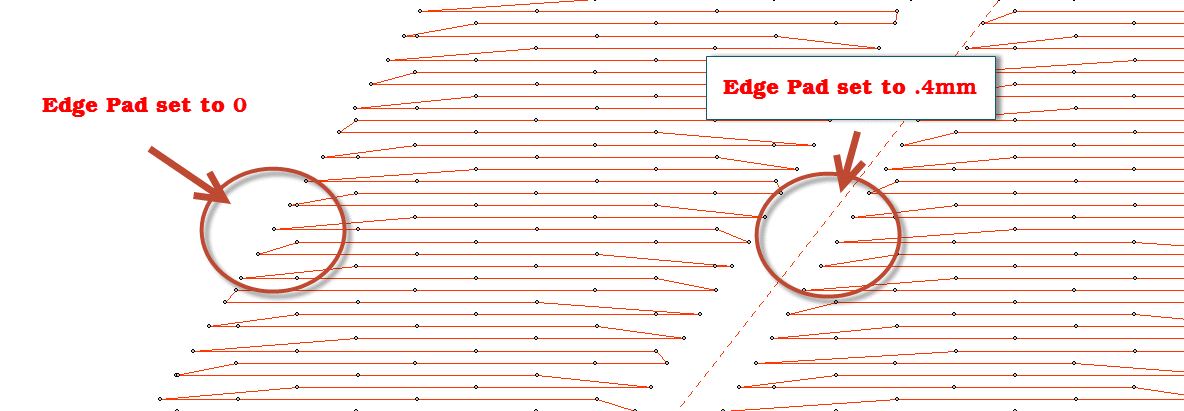
When patterning, the needle penetrations can lie next to one another causing the fabric to lash or even cut. If this is a danger for the fabric being embroidered, set the “Reverse” to “None” which means the pattern will only occur on every other stroke of the satin. The pattern effect will be lighter, but the embroidery will be better and the fabric will not have as many cuts.
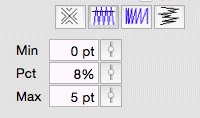 Compensation helps create
embroidery that matches the image, understanding that the process of sewing the
design will create distortion as it is happening. With compensation, the
endpoints of the lines in a fill are stretched out slightly past the edge of the
shape. This helps with registration issues because as the lines are sewn, the
fabric is pulled in slightly (shortened), so the longer lines will reach the
spot intended to be covered.
Compensation helps create
embroidery that matches the image, understanding that the process of sewing the
design will create distortion as it is happening. With compensation, the
endpoints of the lines in a fill are stretched out slightly past the edge of the
shape. This helps with registration issues because as the lines are sewn, the
fabric is pulled in slightly (shortened), so the longer lines will reach the
spot intended to be covered.
You can use a minimum value, usually 0 – 3 points, depending on what the fill is lined up against. If your fill has a wide difference in the width of the runs, in other words some narrow parts and some fatter parts, you may want to use a percent for the compensation. We suggest keeping it a small value, 2-3%. It will be kept in check by the Max value though, even if you use a high percentage.
While the compensation numbers sound like something you should use, they’re really there more for the professional who uses them all the time. Most of the time, simply adjusting the shape to overlap anything that neighbors it will do a fine job of handling registration issues.
Fills can have curved rows of stitching, not only straight ones. Switching to a curved fill is done with the “Curved” checkbox. When you select the fill to be curved, a curved line, similar to a break line, will be created for you automatically, and it will be angled as your inclination was previously.
You adjust the curve as you would with any line. You can add points and remove them. The curve is fully adjustable, but realize there are some rules you should follow.
1. The endpoints of the curve should go past the edges of the shape.
2. The curve needs to be simple – making a loop may be fun, but it won’t be nice to sew.
3. Hard turns will give you areas of low density on the angle, and high density as they straighten out, so use things like that with low density as second fill, for texture and dimension.
Here are some examples of curving fills in action. The stitches and the outline are shown side-by-side for each. Notice the curve on the right has an additional node added to produce an ‘S’ curve:
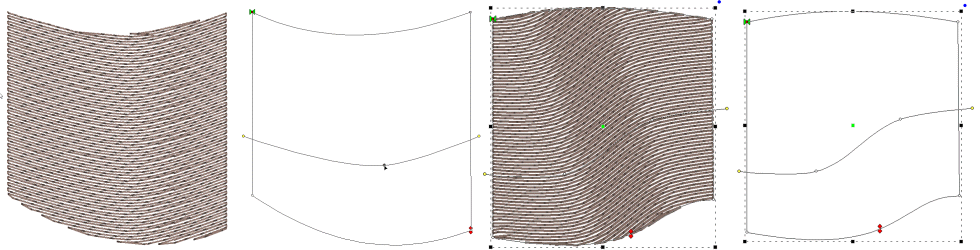
When you click off the curved fill, the line will be replaced with an inclination.
The density of the fill can be adjusted so that each line of stitching moves farther apart from the previous line, which makes for a varying density, called a “Gradient.” Gradients are an effect, and not used to provide coverage as a regular fill might. When making a gradient, you have two densities; the starting density, which is the one set for the fill, and the final density, which is the one set in the Gradient property. The gradient can have different styles selected using the list box. Note that a standard fill has a gradient set to “None.”

Feathering is the extending and shortening of the edges of the fill in a random manner. This is used in fills that are adding texture to a design, and generally would be used over some other design objects for coverage.
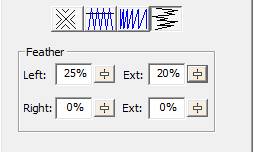
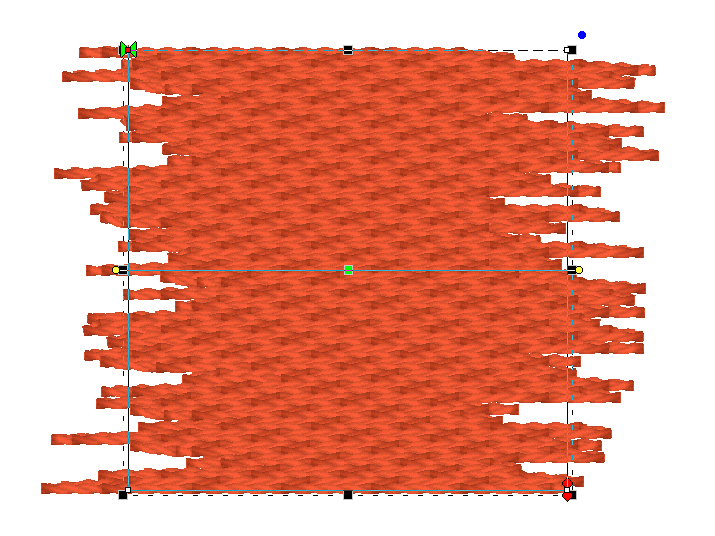
You can adjust independently the left and right inside feathering and outside feathering values. By feathering the edges, you can create simple fur effects.
When setting feather options, realize that left and right are subjective, and if you edit the outline after making this setting, those could actually switch.
 The freestanding
background has been used to simulate lace for many years. It consists of
diagonal runs of stitching that stitch over themselves in order to lock in the
stitches. Using only wash-away stabilizer as a base, the freestanding background
can remain as-is, with no fabric, or as a support layer for satin and fill
stitches. Often, a shape made with the freestanding background, and some
clever inclinations on top-stitch satin columns, can be made to stand all by
itself as lace.
The freestanding
background has been used to simulate lace for many years. It consists of
diagonal runs of stitching that stitch over themselves in order to lock in the
stitches. Using only wash-away stabilizer as a base, the freestanding background
can remain as-is, with no fabric, or as a support layer for satin and fill
stitches. Often, a shape made with the freestanding background, and some
clever inclinations on top-stitch satin columns, can be made to stand all by
itself as lace.
In the example below, the heart came in from the library and was set to freestanding fill. The ‘Diamond’ checkbox was set and the color changed to create the middle heart. The outline was added by copy and paste of the shape, Inflate to reduce its size so the stitches would sit on the background, and the stitch type was set to Satin Border, with all underlay turned on.
Another alternative to the ‘Double’ pass is a single. This creates nice parallel rows of stitching which work for quilting effects, such as sewing rows in a grid on linings, or as background quilting in an In-The-Hoop project, etc.
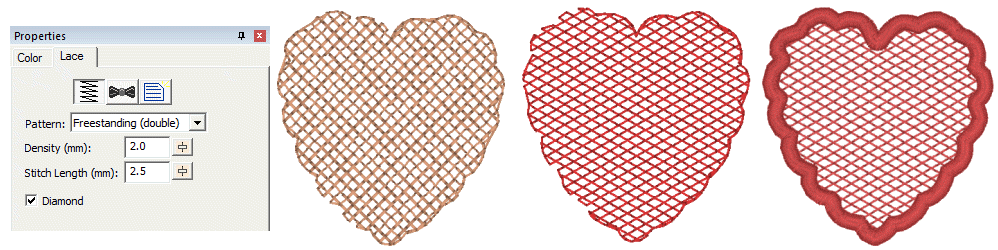
Motif Fill Objects
 Motif fills are similar
to regular fills. You control the density and gradient. Motif fills can be
curved as with regular fills. In motif fills, the traveling stitches always run
along the edge so as not to interfere with the motifs. The motifs are added in
the same manner as motif runs.
Motif fills are similar
to regular fills. You control the density and gradient. Motif fills can be
curved as with regular fills. In motif fills, the traveling stitches always run
along the edge so as not to interfere with the motifs. The motifs are added in
the same manner as motif runs.
The density adjustment in motif fills adjusts spacing between each line in the fill. A zero value here will cause each row to just touch the previous row.
Please see the Motif Run section for details on the use of motif controls.
 Applique Objects have
“Position”, “Material” and top stitching steps. The use of the steps is
optional, including the top stitch. Here is a general way that applique is
typically machine embroidered:
Applique Objects have
“Position”, “Material” and top stitching steps. The use of the steps is
optional, including the top stitch. Here is a general way that applique is
typically machine embroidered:
The “Position” step places a run down on the fabric, and then stops the machine. This is used to provide you with a placement line for your applique. You can use a Pre-Cut applique, perhaps cut with a machine, or by hand using a template. Or you can simply lay down a piece of fabric big enough to cover the placement stitch. A tip to placing your applique is to use some adhesive, spray-on, ireon-on or otherwise, to hold the applique fabric in place when the machine is restarted.
The “Material” step will sew another set of running stitches to anchor the applique fabric in place. This step may be omitted if the applique is Pre-Cut, as the topstitching will anchor the fabric down.
The topstitch finishes the edge of the applique, and you can choose from Blanket Stitch, E-Stitch or Satin Border.
Note: You can also use the Satin Border object type to make appliques, and it provides additional properties.
The applique properties add applique steps and visualization to the object. You can select adding a “Position Stitch” which will be a single run that sews out to indicate to the user where the applique will be laid. Then an optional “Material” run can be done to anchor the applique in position.
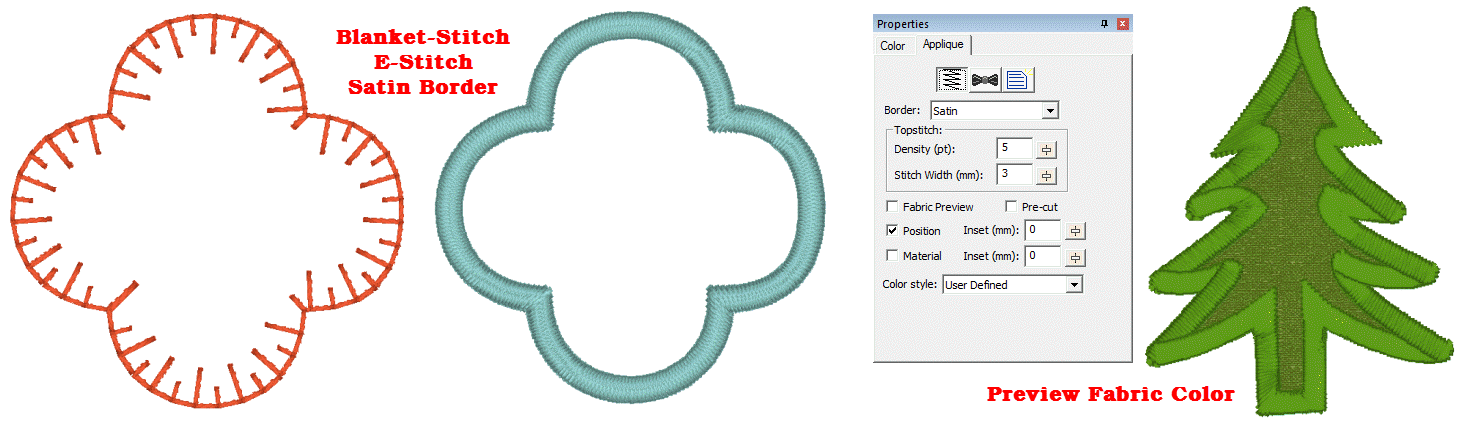
Blanket and E-Stitch have stitch length and width which can be set in the properties. The Satin and Zigzag stitches use density and width. The applique can have a fabric preview which lets the user visualize the final applique with colors similar to those that will actually be used. The color used for the preview is set by the color of the Position step.
The Pre-Cut checkbox indicates that you will have the applique already cut, and this causes the object size to be locked, preventing you from inadvertently mismatching the design and the fabric. Pre-Cut appliques could also come from dies, where the exact size of the applique is known in advance.
If you scan in a precut shape to create an applique, such as from a die-cut fabric, place the fabric on a background grid with known measurements – for instance 10mm or ½”. Using those measurements, you can scale the image to match the grid in the program, so that the size will be exact. Sometimes, a scan may have a vertical or horizontal difference in scale (it can stretch the image) but the grid you scan in will show you that, if you use the measuring tool on the main toolbar.
Applique insets are used to offset the stitching from the applique material itself. If the material or top stitch was identical in size to the applique (if it is pre-cut especially) then the applique might not be well sewn down and could lift away from the finished product.
The Color style allows users to adjust how they work with color during appliqué steps. There are three styles: Keep Color, PES Card (Traditional) and User Defined.
Use Keep Color to conserve thread changes by combining like colored Top Stitch and next position placement stitches. This will allow the machine to stitch the finishing stitch of the piece and the placement stitch of the next piece (if the same color) without having to start the machine again.
For traditional stops after each section, you may select the PES Card option from the Color type list. This selection may be necessary depending on your machine, particularly if you use PE-Design / Palette or similar to write a PES card for your machine.
The User Defined lets you use any color you want.
In the Color Properties you can click on a color to change it, and this displays the Thread window, which also has an “Applique” tab. Using that tab, you can save a cutting file for virtually any cutter.
StitchArtist also enables you to mix an image into your applique, making mixed-media applique a unique option for your projects.
Please refer to the Applique section in the Embrilliance Platform.
 Stippling is a wandering
path that is formed automatically based on an outline and any number of holes.
The path is a continuous curve that wanders around seemingly aimlessly yet it
meets itself at the finish. Because the result is a closed shape, the Exit point
is ignored, but the Entry point is honored. The Stippling object can have a
single inclination line added to it which will set the rotation of the pattern
(So that it comes off horizontal) so that different blocks will have even
greater differences in pattern.
Stippling is a wandering
path that is formed automatically based on an outline and any number of holes.
The path is a continuous curve that wanders around seemingly aimlessly yet it
meets itself at the finish. Because the result is a closed shape, the Exit point
is ignored, but the Entry point is honored. The Stippling object can have a
single inclination line added to it which will set the rotation of the pattern
(So that it comes off horizontal) so that different blocks will have even
greater differences in pattern.
There are four patterns that you can choose from with stippling: Drunkard which wobbles a bit and is slightly inconsistent with the distance between jigsaws, Curvy which has a ‘cleaner’ and more consistent spacing, Leafy which tapers some of the pattern to give a floral effect, and finally, Geometric for a cleaner look perhaps for modern quilting.
With all of the patterns you can adjust the spacing of the run to vary from a tight stipple to a loose meander. You can also set the stitch length.
If you want to edit the path or change the stitching in more ways, the stipple can be converted to a run, which will keep the generated path, and let you apply stitch effects such as motif. Simply click the Run stitch type button in the Tool Pane while the stipple object is selected.
Cross Stitch objects create patterns of crosses in filled objects and on outlines to resemble handwork.
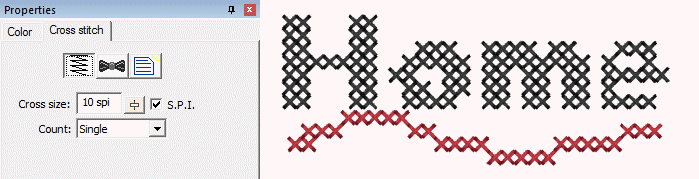
The cross size is available in metric and Stitches per Inch (SPI). Stitches per inch settings are not exactly duplicable in normal metric stitch points – and the result is obvious if stitched on Aida cloth which is woven at densities of SPI. Therefore you have your choice of how the cross size works.
When creating a cross, each leg of the cross is stitched twice. Sometimes you will want more thread, for example when using large crosses, and you can adjust the count setting accordingly. Realize that increasing the pass count will have a dramatic effect on the stitch count.
The cross stitches for all cross stitch objects are made on a default grid of ‘cells’. This allows the stitching of adjacent object shapes to line up. We think of each of these cells as either ‘off,’ meaning no cross, or ‘on’ meaning a cross will be stitched.
When creating outlines with closed shapes, only the cells which have their center within the shape will be set to cross. If you make a shape that appears to ‘miss’ a cell, and you want to make it appear, it is normal to adjust the outline shape accordingly. When adjusting the shape to turn on (or off) a cell, we suggest adding one or more line nodes to the outline (ctrl key while clicking in point mode.) We also suggest using the Spline mode for point entry because it can make it easier to insert points to grab specific cells.
When creating crosses with an open object, whichever cells are intersected by the line are turned into crosses.
If you move an object, the crosses will move with it. Once moved, you may want to re-generate the object (touch a property or outline node) so that the correct crosses, exactly on the grid, will be generated.
 Contour Echo is a stitch
type for quilting, trapunto or decorative effects. It provides different ways to
echo around outlines and holes. When echoing, you can set the distance for the
echo in mm and also see it in stitches per inch. There can be a gradient to the
echo, and using the stitch properties button at the top of the Echo properties
page you can set the stitch style to several of the Run stitch types.
Contour Echo is a stitch
type for quilting, trapunto or decorative effects. It provides different ways to
echo around outlines and holes. When echoing, you can set the distance for the
echo in mm and also see it in stitches per inch. There can be a gradient to the
echo, and using the stitch properties button at the top of the Echo properties
page you can set the stitch style to several of the Run stitch types.
You can choose from three styles:
1. Echo Outline Inward, which creates an interesting echo inside the shape.
2. Echo Interior Clipped requires any number of holes and will echo those out toward the outline. The shape of the outline is used to clip or cut the echoes.
3. Echo outline outward is a simple echo of the outline itself. You can echo as many steps as you choose.
The Contour Echo can be converted to a series of Run objects for further editing as desired by clicking the Run stitch type button in the Tool Pane.
 Program Motifs are items
that the software knows how to digitize, and unlike a regular motif, it will do
so differently depending on the size of the design. Program motifs include
French knots, candlewicks and eyelets (Level 3).
Program Motifs are items
that the software knows how to digitize, and unlike a regular motif, it will do
so differently depending on the size of the design. Program motifs include
French knots, candlewicks and eyelets (Level 3).

Program motifs follow the same drawing methods as a run, but given their size, making hard points obvious is difficult. They can run along outlines of shapes, or be used singly with short line segments. Due to their nature, they tie themselves in and out, so you could trim between if desired.
The Single eyelet size is controlled by making a two-point line. The starting point will be the center of the eyelet, and the second point will be the outer radius of the eyelet.
The only real consideration when using these stitch types is that knots are dimensional and have been programmed to emulate their hand-stitch counterpart, therefore they tend to produce a lot of stitches.
Converting objects to different stitch types is as easy as selecting the object and clicking on the desired stitch type. All properties are lost when converting types; it’s like starting with new artwork.
There are two conversions that are different than normal conversions, and those are Stipple and Echo. Converting Echo or Stipple to anything other than a run operates normally; the outline and any holes are preserved.
When using stipple objects, there are times you wish to adjust the generated pattern, or apply motifs to the run. When you convert a stipple object directly to a run, the result is a run that has the path of the stipple, not the outline that was used to create it. That result can be turned into a line, motif or anything else.
When converting Echo to run, the result will be one or more objects that are the echoes. You can then apply any stitch type to those objects for your desired effect.
You can design templates for lettering to use in name drops, word walls, subway art, etc. Templates are interactions between two different elements: A Lettering Design, and a template object (or objects). To accommodate multiple template designs on a page, the template and lettering items are named using a numbering system that will match them together.
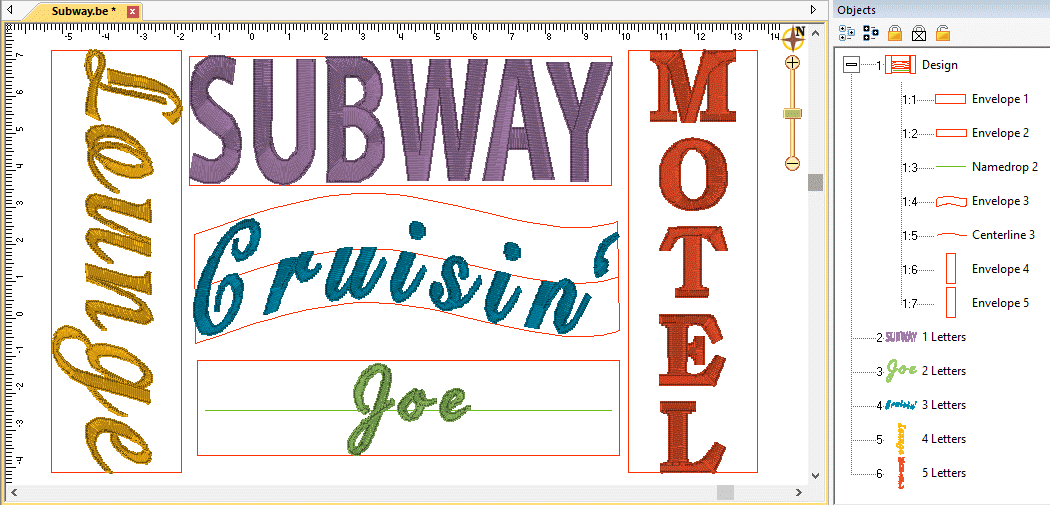
The lettering works with the built-in fonts from Essentials, Embrilliance Font Collections or any of the .BX fonts that you have installed. The way it works is to start with an “Envelope” object. This is a Line Object with a closed shape, like a rectangle. The object requires a name, “Envelope” with a number like “Envelope 1”, “Envelope 2”, etc. The number is an index so that you can match lettering objects to their envelopes. When naming your lettering designs, give them a matching number at the beginning of their name, for example, “1 Letter”, “2 Letter”.
Note on the use of .BX-installed fonts:
The fonts installed usually are stitch files, which means that they will not have their stitches recalculated without a product installed which supports it. You may want to add additional titles in order to use lettering in this way.
The envelope object must be in a design that comes before the lettering design. When the lettering design gets updated, it looks backward to see if there is a matching envelope for it to use.
When doing filled rectangular areas such as typical in subway art, all you need is the envelope. The Envelope can be vertical or horizontal. In the vertical examples in the image, the difference with the word, “Lounge” and “Motel” is that the lettering design for “Motel” was set to vertical using that monogram quick style.
If you want to have your text curve, as with the “Cruisin’ example, you need to add a line object called, “Centerline” with the index number matching the envelope to which it will belong. The centerline width also sets the text width, so you can have your centerline slightly narrower than the envelope, which can be useful if you’ve copied the envelope from stitch objects.
The centerline object should be vertically centered in the envelope as shown. You can add some text, and adjust the centerline until you’re happy with it – to regenerate the text, simply select the letter object and click ‘Set’ in the letter properties. Note that if you’re in Design Creation mode, you won’t be able to click on the lettering, but you can still select the text using the Object View.
If you want to create an un-stretched design as shown with the word “Joe” above, change the name of your centerline to “Namedrop” followed by the index number. This works like the centerline, but does not stretch the word horizontally. You can justify the namedrop by adding “LJ” or “RJ” to the object name. For example, “Namedrop 1 LJ” will justify the word to the left of the centerline.
Note: For a single line, normal namedrop, you can simply make a lettering object, using the multi-line text field with a single line of text. This will allow you to change the text, but retain justification and baseline. That feature is part of the platform, and you do not need an envelope for it.
As in the image, you can (and probably should) place all your template objects in one design. As long as that design comes ahead of the lettering designs, the template items will be found. You do not need to have the designs in any order – the sequence for stitching should be how you want it, and you use the sequence of the lettering designs to control the sewing order. All that matters is that the index numbers in the names match.
StitchArtist allows the display of all hoops in the platform, including multi-position hoops. The multi-position hoops are not there to automatically split. Their inclusion is for the purpose of creating designs specifically for those hoops. As you are in control of all stitch objects, you decide what parts of your design will go in each hoop section.
We suggest creating a separate design for each hoop section. If the hoop you are using is not a physical multi-position hoop, you will need to add alignment lines that exist on each design so that the position of the designs can be lined up by the embroiderer when sewing.
As each design will center when it is saved, we suggest using a basting box for each hoop position. The box should be centered in the hoop section, and should completely contain your design section.
Once you have each design created, copy them to a separate design page and save them individually. As this is an advanced topic, you may want to look online for specific instruction.
There are a number of keyboard shortcuts, sometimes called “hotkeys” in this program. Some you may never use, and some you won’t want to live without. If you’re just getting started, please don’t think you need to memorize them all. As you become more productive with the program, have a look now and again to see what might be useful to you. Production design creators who use the program all day every day will no doubt use them all.
• ‘q’ Begin drawing using the same input method and stitch type as the last object.
• ‘w’ Begin drawing using the same input method and stitch type as the object prior to the last.
• ‘x’ Begin drawing using the same input method as the last object, using whatever stitch type is currently set.
• ‘X’ Begin drawing, using the same input method as the last object, using the ‘Line’ stitch type.
• ‘c’ Begin drawing a satin column using the last input method, L/R or A/B.
• ‘o’ Add a hole to the currently selected object.
• ‘I’ Add inclination lines to the currently selected object.
• ‘b’ Toggle the view of the background images one and off.
• ‘n’ Toggle the view of the stitches on and off.
• ‘g’ Toggle the view of the Background Grid on and off.
• ‘h’ Toggle the view of the hoop on and off.
• ‘p’ Toggle stitch point highlights on and off.
• ‘a’ Zoom and pan to all objects on the page.
• ‘s’ Zoom and pan to the selected objects on the page.
• ‘0’ Zoom to the hoop.
• ‘1’ – ‘9’ Set the zoom to a multiple of real scale.
• ‘Ctrl-g’ Group the selected objects/designs
• ‘Ctrl-u’ Un-group the selected items.
• ‘Ctrl-x’ (Win) or ‘Cmd-x’ (Mac): Cut for clipboard
• ‘Ctrl-c’ (Win) or ‘Cmd-c’ (Mac) : Copy for clipboard
• ‘Ctrl-v’ (Win) or ‘Cmd-v’ (Mac) : Paste for clipboard
• 'Arrows’ Scroll 1cm.
• Shift+Ctrl (hard node drawing): Constrain new point to 15 degree angles.
 When you tell an object that it is to be a
certain stitch type, the stitches will automatically generate. Also when you
adjust or edit the object, the stitches will generate for you. But what if you
want to do a complex series of edits on the object? It might be desirable to
turn the automatic generation off for a while. You can do this with the ‘Delayed
Generation’ button. As long as the button is pressed, and you are in ‘Create’
mode, your stitches will not generate.
When you tell an object that it is to be a
certain stitch type, the stitches will automatically generate. Also when you
adjust or edit the object, the stitches will generate for you. But what if you
want to do a complex series of edits on the object? It might be desirable to
turn the automatic generation off for a while. You can do this with the ‘Delayed
Generation’ button. As long as the button is pressed, and you are in ‘Create’
mode, your stitches will not generate.
 When you want to generate
stitches on an object or set of selected objects, click the ‘Generate now’
button. If nothing is selected, the program will look for any objects needing to
be generated and will generate them accordingly. This button is useful when
Delayed Generation is turned on – you control what gets generated and when.
When you want to generate
stitches on an object or set of selected objects, click the ‘Generate now’
button. If nothing is selected, the program will look for any objects needing to
be generated and will generate them accordingly. This button is useful when
Delayed Generation is turned on – you control what gets generated and when.
 The usual mode of drawing
with points is to draw with curved points and use the Ctrl key to draw a line.
This may be undesirable for some art. You can use this button to switch the way
that operates – pressing it will cause drawing to default to a line, and the
Ctrl key will cause points to be a curve. Note that using the Shift key to make
a line constrained to 15 degree angles will work either way – you can constrain
the line angle as long as you are not making a curve.
The usual mode of drawing
with points is to draw with curved points and use the Ctrl key to draw a line.
This may be undesirable for some art. You can use this button to switch the way
that operates – pressing it will cause drawing to default to a line, and the
Ctrl key will cause points to be a curve. Note that using the Shift key to make
a line constrained to 15 degree angles will work either way – you can constrain
the line angle as long as you are not making a curve.
 When drawing, the edges
of the main view have an area that act as an auto-scroll area – if you move your
mouse in that area while drawing your page will scroll automatically which gives
you more room to continue drawing. Sometimes this is undesirable, and the action
can be toggled on and off using this button. Note you can also use the arrow
keys while drawing to scroll 1cm per key click. And holding the spacebar will
let you pan the screen by dragging it with the mouse.
When drawing, the edges
of the main view have an area that act as an auto-scroll area – if you move your
mouse in that area while drawing your page will scroll automatically which gives
you more room to continue drawing. Sometimes this is undesirable, and the action
can be toggled on and off using this button. Note you can also use the arrow
keys while drawing to scroll 1cm per key click. And holding the spacebar will
let you pan the screen by dragging it with the mouse.
 Areas filled with
stitches such as Satin Columns and Fills can be given additional texture using
Carving Lines. Carving lines are additional shapes that can be added to objects
in a very similar manner to adding holes. Use the ‘Add Carving Line’ button on
the Tool Pane to begin a carving line, and select the input method (usually
Point Input) to begin drawing. Draw a path over the object.
Areas filled with
stitches such as Satin Columns and Fills can be given additional texture using
Carving Lines. Carving lines are additional shapes that can be added to objects
in a very similar manner to adding holes. Use the ‘Add Carving Line’ button on
the Tool Pane to begin a carving line, and select the input method (usually
Point Input) to begin drawing. Draw a path over the object.
The carving line generates needle penetrations where the normally-generated stitches intersect the carving line.
The only real caveat to carving lines is that in high-density areas, your fabric may lash up as the needle is penetrating closely together. For this and other reasons, some designers create two areas of fill, overlaid on one another, each at half density. This adds texture, can reduce fabric pull, and carved lines will add minimal impact.
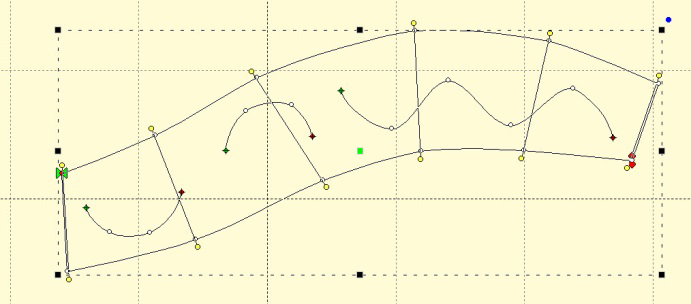
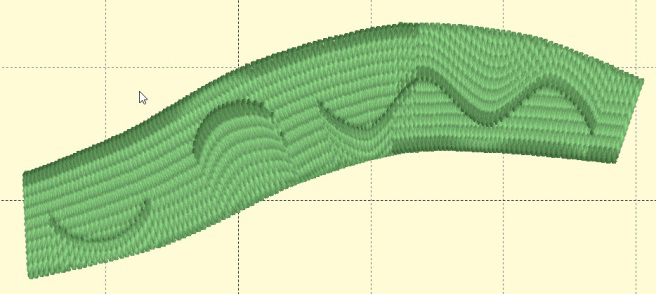
Styles allow for repeated use of properties on a given type of object. There is a style button on the top, right of each object property page. When an object has been assigned a style, that style will be highlighted in the style list, shown on the Style properties for the object. If an object was assigned a QuickStyle, but has been modified, it will be given an asterisk at the end of the style name.
Once you change the property of an object you just made, the program takes the properties of that object and uses them for the next object you make of the same type. This is the “Current Style.” For example, if you create a run and set it to a Bean stitch, the next run you create will start out as a Bean also. Although it may not be a named style, the current properties are important, as they are used when creating an object.
Updating the ‘Current’ Style
The ‘Set’ button will use all of the properties as shown to set the ‘Current’ style for new object creation; when you create a new object of that same type (run, column, etc.) it will be created with the same settings as the first object now selected.
Alternately, if you have an object whose style is “None” and you click ‘Update’ it will likewise set the ‘Current’ digitizer settings to match that object.
When you begin creating objects having just run the program, the default styles are being used, called “Normal.” These have been tested to be reasonable for all-around conditions, but naturally properties exist for a myriad of reasons.
To remove the QuickStyle from an object, click “None.” This will have no effect on the properties of the object; it just removes the style setting.
When you have an object that has its properties set a certain way, you can save those properties as a QuickStyle. Using QuickStyles allows you to remember a set of property settings that sewed perfectly for a project, or simply to match prior objects you’ve created.
Adding a QuickStyle
When you create a style based on a selected object, you can name it. This is called a QuickStyle, and the style itself resides with the design page being used, and on your computer for future use. To do this, click the ‘Add’ button.
If you load a document with a style that is not on your system, it will be referred to as a “Page Style”. If you would like to add this style to your collection for use later, you can click the ‘Add’ button.
Renaming a QuickStyle
If you wish, you can rename the style with the ‘Rename’ button. Any object that uses this style will show the new name in use when the style page is shown.
Updating a QuickStyle
When you have modified a QuickStyle-stylized object, and you want to update the QuickStyle to match the current object properties, use the ‘Update’ button. This means that other objects with the same style set will not match. Since the main reason for styles is to have all the objects working the same, there is an option presented to update all the other objects which use the same QuickStyle to have their properties match the current one.
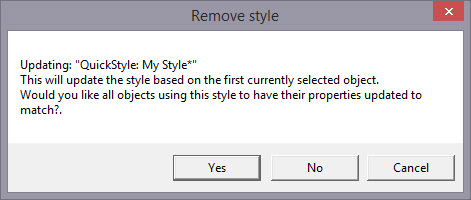
Removing a QuickStyle
Using the ‘Remove’ button, with the trash can icon on it, you will remove the QuickStyle from the page, and from your system. Realize in doing so that other objects on the page, or indeed other files you have created, may have used that QuickStyle.
As QuickStyles are stored with the page as well, the style will become a “Page Style” for other documents when you load them, if they had that QuickStyle applied.
When you remove a QuickStyle, it erases it completely without affecting the properties themselves. Objects that have had their QuickStyle removed will not lose their property settings, but will naturally have a style setting of “None.”
Stylesheets are design collections which have objects that have properties set to perform digitizing a certain way.
For example, suppose you want to collect a set of object types that you use to create freestanding lace. You can make a design with those objects in it. Their shape does not matter, but their properties are what are important. The objects will have the properties needed to make your lace. You can then use that Stylesheet at any time to set all the object properties on the sheet.
Stylesheets allow you to add styles to your Styles lists quickly and easily. They can also be exported in a .BX installer for use on multiple computers, or even shared with others.
Stylesheets can be loaded into the ‘current’ digitizer settings, usually at the onset of creating a new design, but not always – they can be set as the current properties at any time.
Creating a Stylesheet
Start with a new design page. Now begin by digitizing one object, and set the properties of that object to your style. You can use a QuickStyle that you have on hand already to set the properties. You can add as many objects to the design as you like. Once you have the design how you want it, use the menu ‘Create->Publish->Stylesheet’:
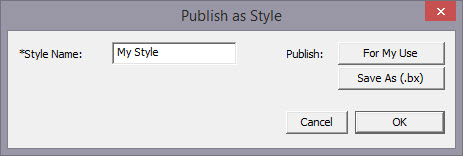 ’
’
You now have two options for Publishing: Publishing to your collection of Stylesheets, or publishing as a .BX installer. The .BX option will also publish to your stylesheet list, but it additionally saves a .BX file to a location of your choosing.
Here is an example:

In this screenshot, you can see we have two Run objects, labeled ‘Stem’ and ‘Bean’. We also have a Fill object, labeled, ‘Light fill’.
IMPORTANT: Save your working (.be) file so you can adjust this Stylesheet at a later date if you need to.
When we publish this Stylesheet, we have these available as QuickStyles:
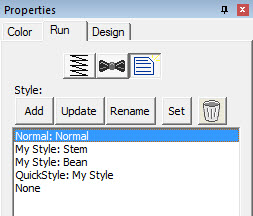
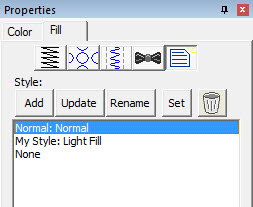
Notice there are now two entries on the Run (left) and one on the Fill (right).
Setting a Style as Current
The menu ‘Create->Styles…’ calls up the Stylesheet manager:
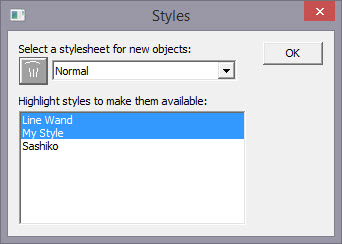
This window is divided into two sections. On the top is a list of the Stylesheets available to be used to set the ‘current’ properties. The lower list allows you to highlight any and all Stylesheets you want to have available for use while creating a design.
Thus you are not limited to a single Stylesheet, nor are you restricted to using it only at the start of a design page. You can set the properties to a style at any time by selecting it in the drop list. And you can highlight as many stylesheets to be available as you like.
You will notice there are some Stylesheets that exist for you; Normal (which is the default properties for the program) and ‘Line Wand’ which is handy to use when generating objects with the ‘Magic Wand Lines’ tool. You’ll notice that in the image above, there are two Stylesheets selected, “Line Wand’ and ‘My Style’, so here is what we see in the Run properties:
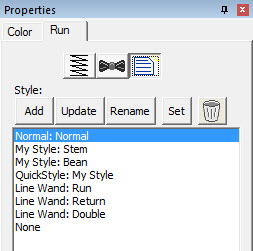
Notice that there are ‘My Style’ and ‘Line Wand’ available. Also, we had chosen ‘Normal’ as the Stylesheet to use as a current property set, so the Normal is there as well.
Note that QuickStyles are always available to you; they are not a particular Stylesheet, but rather a simple set of properties for one object type.
Removing a Stylesheet
When you select a Stylesheet that you have created, the trashcan button next to the drop list will be active, allowing you to remove that Stylesheet from your system completely. (Remember, we told you to save the .BE file in case you want it later!)
Path operations are advanced graphical tools that help you quickly get a result shape based on currently selected ones.
 Sometimes you would like
to be able to take a pair of scissors to a shape – make a wavy or straight cut
across it. You can do this with Breaklines. Using the ‘Break line’ button,
having already selected a closed-outline Line object, you enter the Break Mode.
Next, select an input mode to draw your line across the shape, and right-click
to end drawing. You can edit the line before it is used. Once you have the line
as you would like, use the “Cut the object” button to make the cut. You will now
have multiple objects.
Sometimes you would like
to be able to take a pair of scissors to a shape – make a wavy or straight cut
across it. You can do this with Breaklines. Using the ‘Break line’ button,
having already selected a closed-outline Line object, you enter the Break Mode.
Next, select an input mode to draw your line across the shape, and right-click
to end drawing. You can edit the line before it is used. Once you have the line
as you would like, use the “Cut the object” button to make the cut. You will now
have multiple objects.
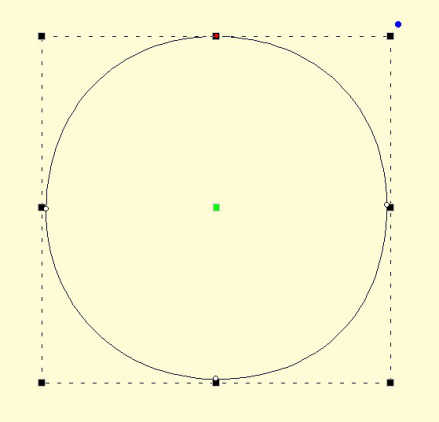
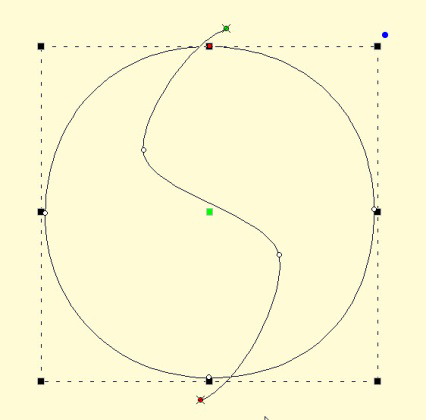
Start with a circle and draw a Breakline.
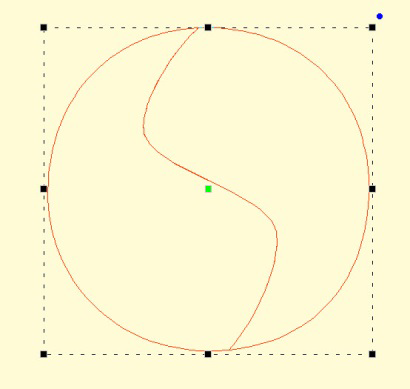
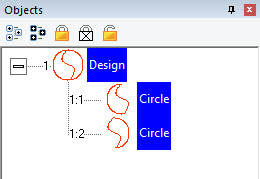
Cut the object with
the Breakline. You can see it is now two objects. 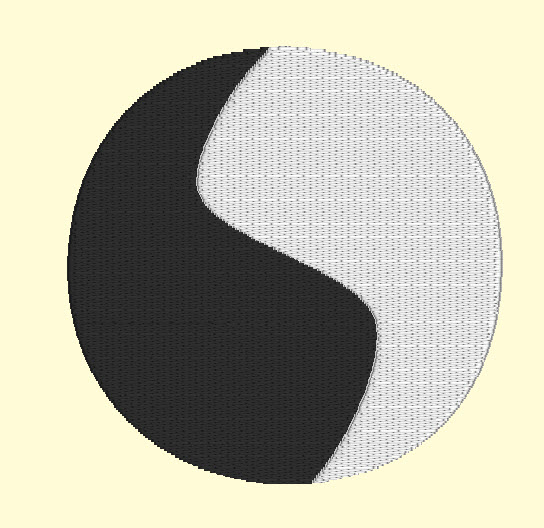
A Fill stitch has been added and colors chosen.
 Cut is a path operation
that lets you remove a part of a shape, in the form of another shape. Think in
terms of a cookie cutter. There is a base shape (earliest in the sequence), your
dough in this example, and a cookie cutter on top. Position the cutter as you
like, select the two shapes, and click the Cut button. The base object will now
have its shape adjusted to have the area under the cutter removed.
Cut is a path operation
that lets you remove a part of a shape, in the form of another shape. Think in
terms of a cookie cutter. There is a base shape (earliest in the sequence), your
dough in this example, and a cookie cutter on top. Position the cutter as you
like, select the two shapes, and click the Cut button. The base object will now
have its shape adjusted to have the area under the cutter removed.
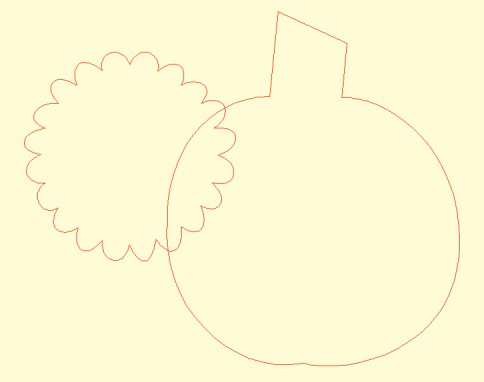
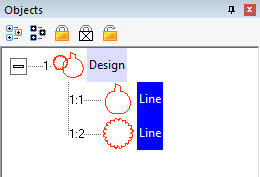

Here we use a couple shapes from the Library; the Pumpkin and a Flower. Note the Pumpkin is the first object, which is the one that gets operated on. Select both items and click the Cut button which gives the appearance of a ‘bite’ being taken out of the pumpkin. Do we have rabbits in the garden?
 This is a more advanced
operation where two or more shapes overlap one another, and you want a new shape
based on the area where the shapes overlap. The “AND” is where this shape ‘and’
that shape both exist. It is used more for visual effects – breaking a set of
multiple overlapping shapes into even more parts. The results of the AND
operation are added after the last object used in the operation.
This is a more advanced
operation where two or more shapes overlap one another, and you want a new shape
based on the area where the shapes overlap. The “AND” is where this shape ‘and’
that shape both exist. It is used more for visual effects – breaking a set of
multiple overlapping shapes into even more parts. The results of the AND
operation are added after the last object used in the operation.
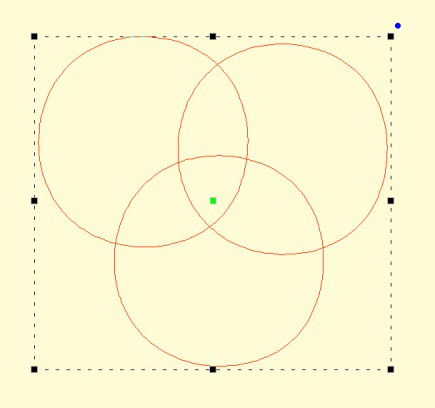
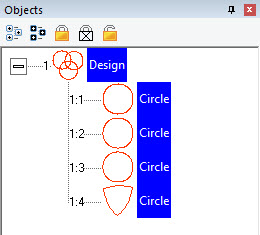
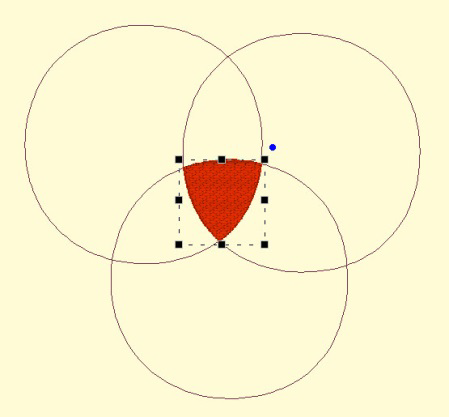
First, we merged three copies of a circle, then used the AND button.
The result is shown as a red fill on the right.
 When you have two or more
shapes that overlap, and you want to make a shape that represents the entire
outline of all the shapes, you use the Union button. This could be effective for
adding a border around a design. The new Union shape is added to the design
after the last of the shapes involved in the operation.
When you have two or more
shapes that overlap, and you want to make a shape that represents the entire
outline of all the shapes, you use the Union button. This could be effective for
adding a border around a design. The new Union shape is added to the design
after the last of the shapes involved in the operation.
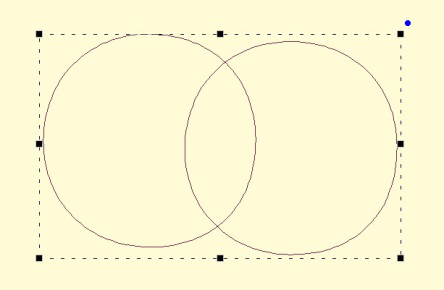
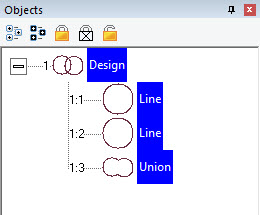

Two circles have been merged together on the left. Then the Union button has been used to create the third object, a ‘Union’. The image on the right shows the union object having been inflated so that it surrounds the original two circles.
 When importing
vector art from outside sources, it will be unlikely that the shapes are truly
ready for use in embroidery. Often times in the creation of vector art it is
expedient for the artist to layer one shape on top of another. In graphic arts,
only the final visible items will have any impact on the result, so any shape or
any part of a a shape may be hidden without consequence. In embroidery, those
shapes, as they exist, will be used. This means there will be a tremendous
amount of overlap. The Flatten command clips the shapes against each other so
that only one top layer remains. Remember that registration issues will occur
when you sew these objects, so you will likely need to do some editing.
When importing
vector art from outside sources, it will be unlikely that the shapes are truly
ready for use in embroidery. Often times in the creation of vector art it is
expedient for the artist to layer one shape on top of another. In graphic arts,
only the final visible items will have any impact on the result, so any shape or
any part of a a shape may be hidden without consequence. In embroidery, those
shapes, as they exist, will be used. This means there will be a tremendous
amount of overlap. The Flatten command clips the shapes against each other so
that only one top layer remains. Remember that registration issues will occur
when you sew these objects, so you will likely need to do some editing.
On the left is a graphic created and saved as an SVG. The middle is the import of the SVG – notice the artist used three circles to create the design, which seems reasonable enough. If we make them all fills (and set colors, if needed) as we have on the right, it looks okay…
…But there is a problem. The design on the left is shown with 3D off so you can easily see the overlapping stitches. Once we use Flatten, as in the design on the right, we are closer to having something that will sew without damaging our needle or machine.
 Sometimes you need a
shape to increase or decrease in size, but be exactly the same distance around
all the lines of the original. This means the new shape will have to change. A
classic example of this is echo quilting, where, as the lines of stitching echo
out, the curves become less tight, and fewer details are visible.
Sometimes you need a
shape to increase or decrease in size, but be exactly the same distance around
all the lines of the original. This means the new shape will have to change. A
classic example of this is echo quilting, where, as the lines of stitching echo
out, the curves become less tight, and fewer details are visible.
Clicking the Inflate button on the Tool Pane displays the Inflate dialog, which allows you to inflate selected objects and their holes as needed.
When inflating or deflating, the object selected will change. Thus, if you wish to have the original shape retained on the page (for some other part of the design) you should copy and paste it before inflating. See the next section, ‘Automatic Outlining’ for an example use of inflation.
 Automatic outlining will
create a shape that surrounds any stitches on the design page. This is useful
when creating stitches that will add to an existing embroidery design that has
been merged onto the page.
Automatic outlining will
create a shape that surrounds any stitches on the design page. This is useful
when creating stitches that will add to an existing embroidery design that has
been merged onto the page.
Automatic outlining can also be used to create an object hole. The purpose for this is for quilting designs. You can merge a design or create an interior design with objects, then make a new outline in some larger shape, for instance a quilt block, or your hoop. By adding a hole to that shape, in the form of the current stitches on the page, you can create a stipple, or an echo perhaps, that will surround those stitches and fill the block.
The automatic outlining can be combined with Inflation to allow room around the stitches, for quilting or other purposes. For example, there is a feature elsewhere in the platform which automatically creates knockdown stitches for sewing on terry by first creating an automatic outline, then inflating it slightly, and adding a light fill.
Here’s a quick illustration in use, starting with a basic monogram:
Now we will automatically outline it and set those new objects to a backstitch, made green.

Let’s try a few more steps for fun:
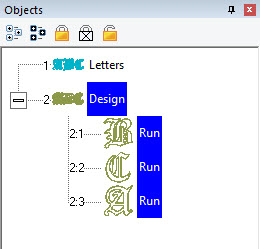
Copy the outlines that were created by the Automatic Outline tool:
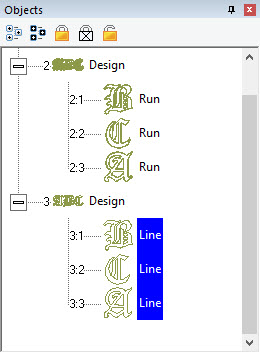
So you should see this.
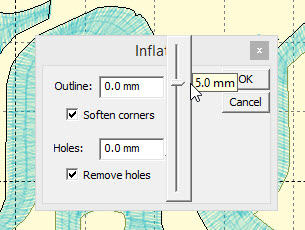
Use the Inflate button  to create echoed outlines of the letters.
Note the ‘Remove holes’ option is turned on. We are using a 5mm
inflation.
to create echoed outlines of the letters.
Note the ‘Remove holes’ option is turned on. We are using a 5mm
inflation.
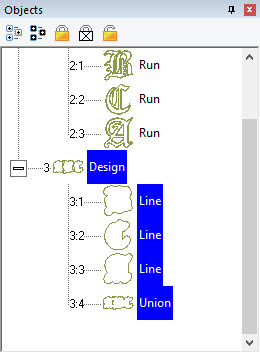
Add a Union. Next, delete the individual ‘Line’ objects, as we won’t need them anymore.
Select the Union and use the menu ‘Create->outline->delete holes.’
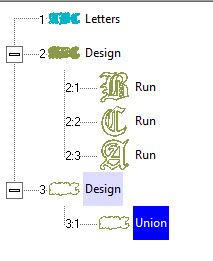
Now add a run to the Union, change style, color, etc.
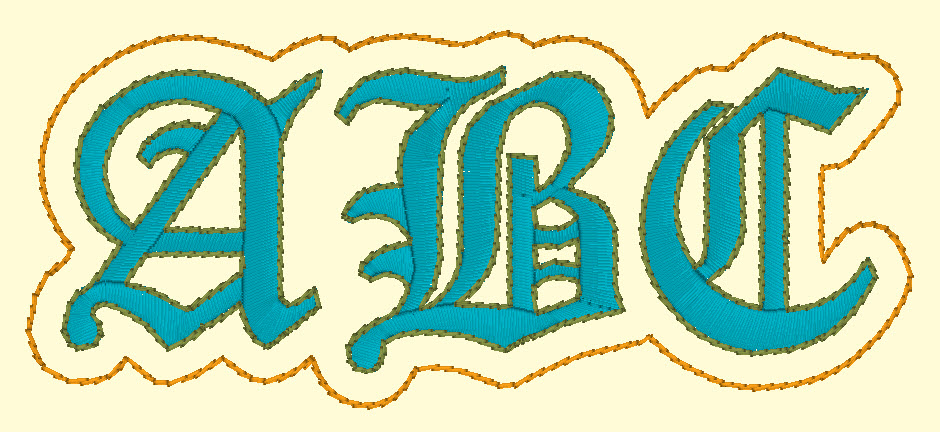
When you want to create your own art and use them within other designs, as motifs or embossing patterns, you can ‘Publish’ them in several ways, including the creation of a .BX install-file which lets you share your work with others.
Motifs are used in Motif Runs and Motif Fills. The motif itself is a design, and can contain any number of Manual, Run and Satin objects, although usually a motif is a singular Manual stitch object. Naturally, a motif cannot contain another motif.
Motifs run left-to-right, by convention in the system. They do get reversed when needed during a fill, but we start with a normal orientation. A motif’s first point and its last point should line up – or rather, they will when used so you might want to consider that as you draw one.
Motifs use the vertical position of the initial and final points as a baseline, like a letter would. The baseline is how much above and below the line the motif will sit.
Manual points are mostly used in motifs, especially since Runs will calculate, and the points where a needle will land are unpredictable when the user is in control of the size. This is doubly true when going around tight curves, where small changes in size will very much affect the position of the stitches.
You can use satins to make a motif, and the satin will generate for the size used in the Motif run or Motif fill. It is generally not needed to use any underlay in the satin, although you can.
Normal motifs are fairly small, typically 2-4mm, so as to be used in a Motif Fill with a reasonable number visible, but they can be large, if warranted. You may want to make a motif that represents a particular client logo, and embed that in the background of a fill in a larger design.
When storing motifs, you will be saving them on your system for use in the future, but when they are used within an object, they are also stored in that object. This means that if you edit the motif, the object won’t be updated – you’ll need to remove that motif from the object that’s using it, and re-add the new version.
Let’s create a motif by drawing a shape and setting its type to Manual. Note the first and last points are on the baseline.
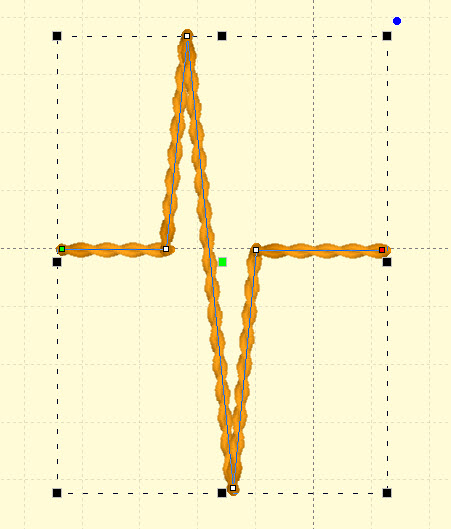
Now we can publish it (along with any other designs on the page). Click ‘For My Use’:
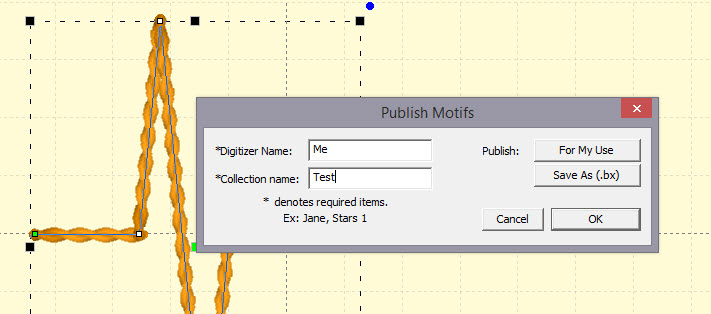
Now, let’s start a new Motif object. Click Add on the Motif property and select the motif:
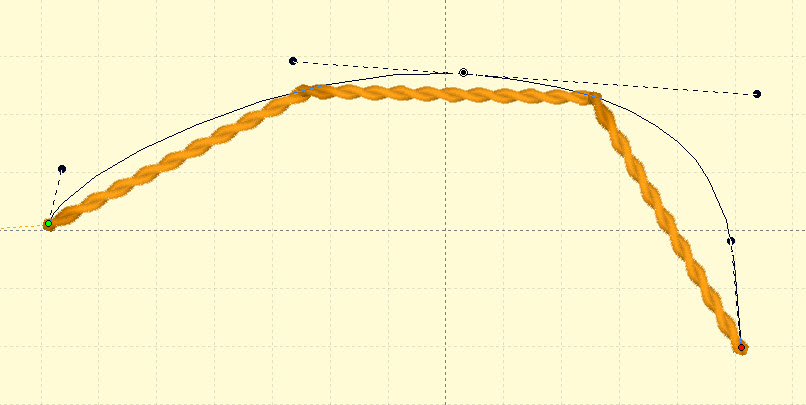
The motif, along with the result:
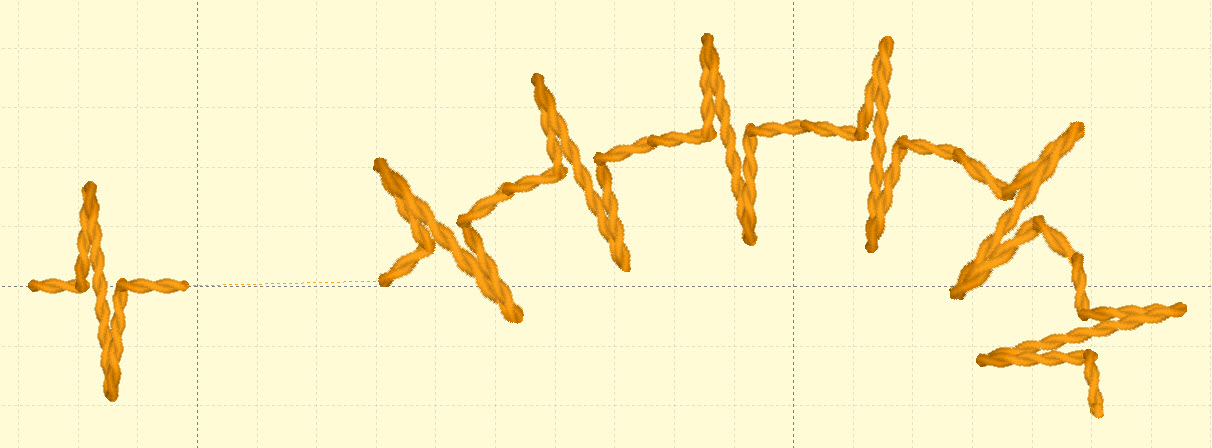
Embossing patterns can be either open or closed shapes, but they will be used differently depending which they are. Open shapes are used as repeating carving lines in a normal fill.
Closed shapes will have the fill stitches that lie internal to the shape removed, unless that makes for an extra-long stitch. The effect of closed shapes in a fill is that of satin areas within the fill, and those provide dramatic relief from the fill stitching; almost a trapunto effect.
In order to ‘see’ more of the embossed pattern, keep its size within the realm of your stitch length or smaller – typically 3.0mm - 5.5mm.
Embossing patterns are done with Line objects, as stitches have no effect in the design. Also, you do not have to worry about transits, overlap, and color or anything but the shape that is your desired result.
Emboss patterns are shapes that intersect the existing stitches thus causing a needle-penetration. When the shape is parallel to the stitches, it may not intersect; hence you can have sides of your shape that do not create stitches. This is usually overcome by adjusting the inclination angle a little bit, or rotating the emboss pattern, so that more intersections occur.
Keep in mind what your emboss pattern will look where its pattern will set next to a copy of itself; the design’s right edge shape will interact with its left edge.
When storing emboss patterns, you will be saving them on your system for use in the future, but when they are used within an object, they are also stored in that object. This means that if you edit the pattern, the object won’t be updated – you’ll need to remove that pattern from the object that’s using it, and re-add the new version.
Let’s go through the process. Here we have drawn some line art in two designs.
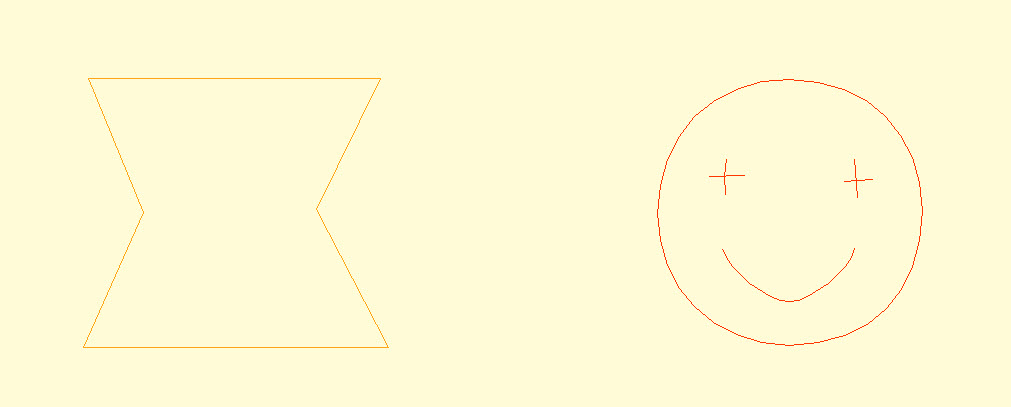

Next, we have a shape with a fill, and we’ll add an embossing:
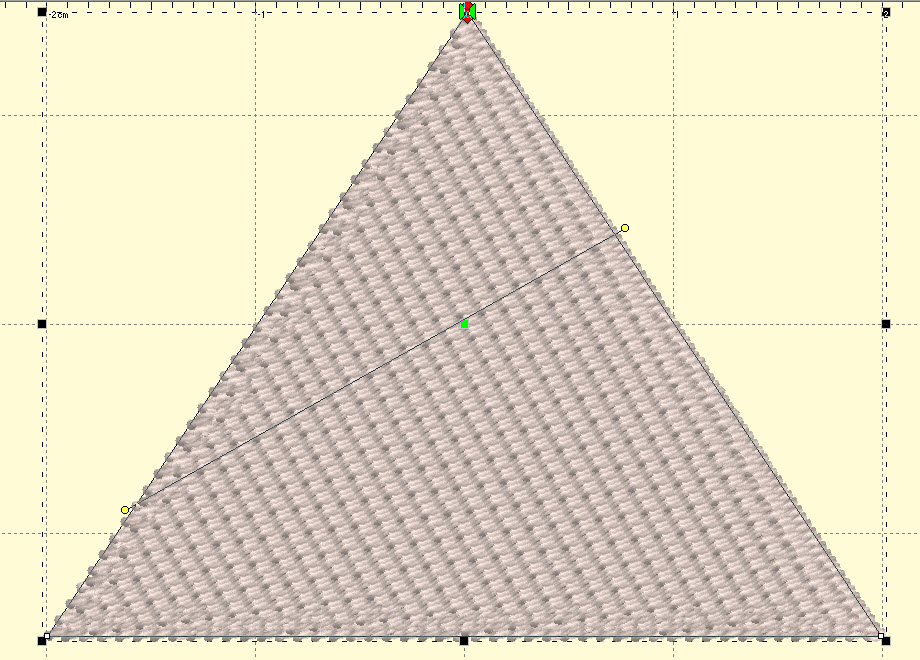
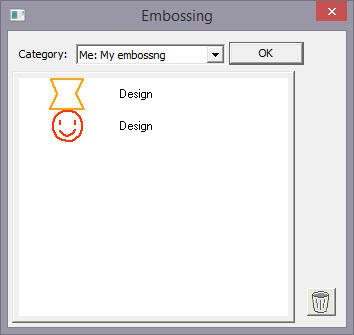
Notice the angle of inclination to cause more intersections in the result:
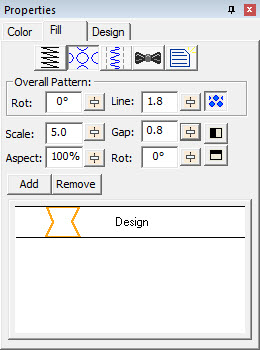
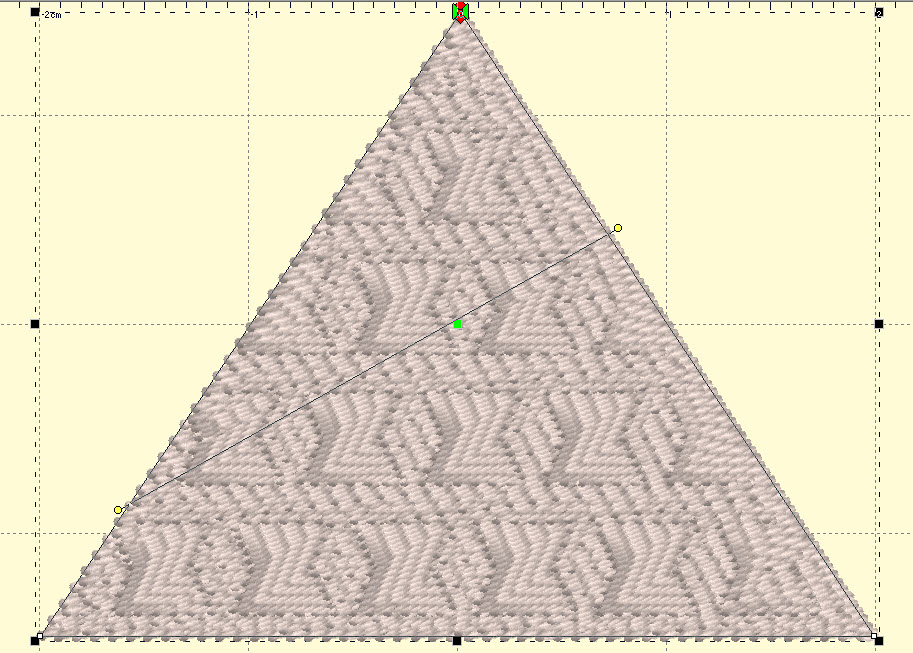
Artwork drawn in the program can be exported as a vector file in .svg format and for popular cutting machines. Use the menu ‘File->Export’ to save the artwork. This is not the same as the applique functions to save cut-files (located on the Applique tab of the Color Window). Those outlines are processed to directly cut an applique. The files saved when Exporting are the objects as-drawn.